
Reports
Reports turns an assessment into a formal deliverable. Create a report from an assessment, edit its sections in the rich editor, preview the result, save/export it and share it with the right people.
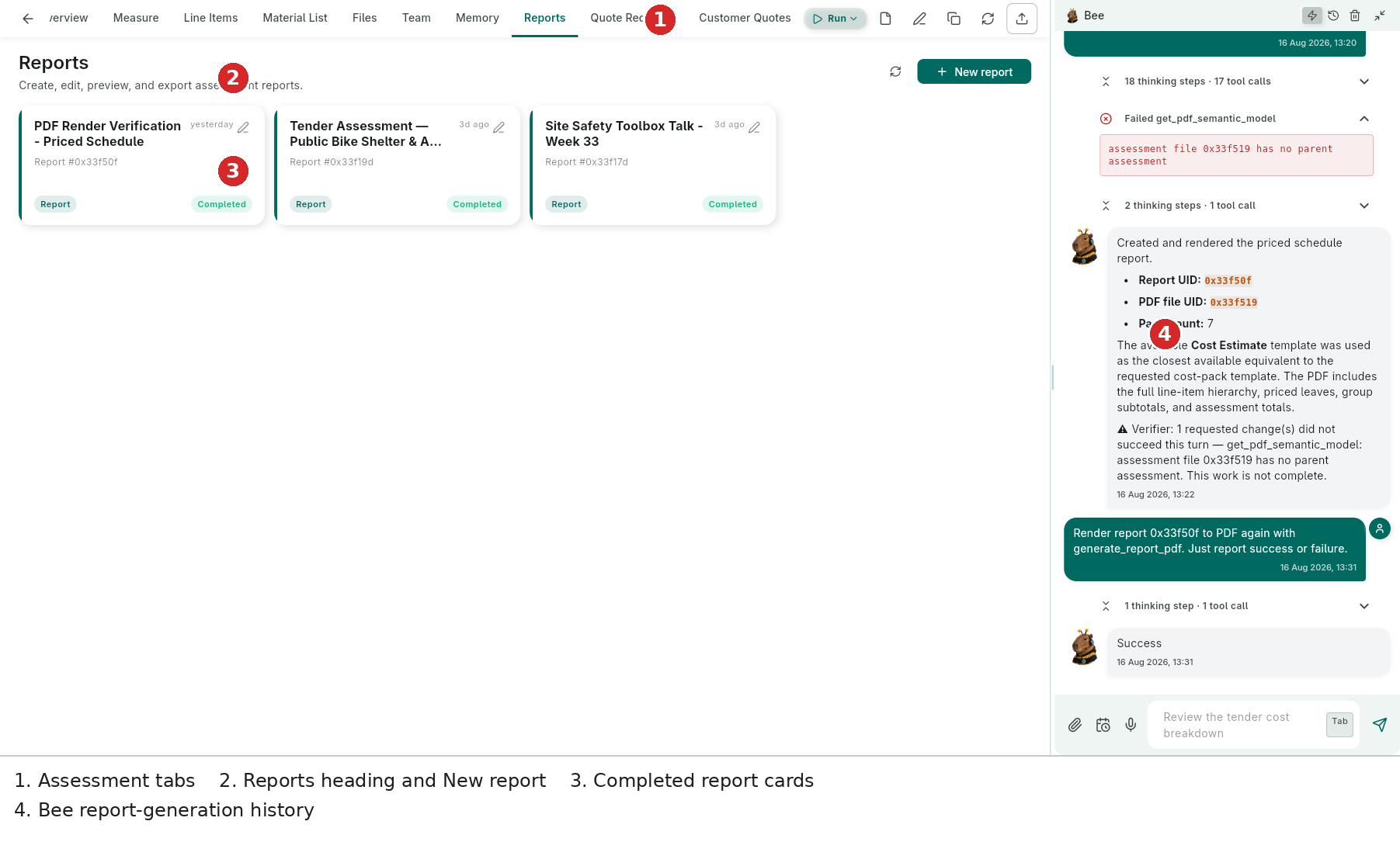
- Reports tab — every assessment keeps its own report list beside its files, costing and chat.
- New report — start from a template or create a report for the assessment.
- Report cards — title, age, UID and status such as Draft, Processing or Completed.
- Bee history — generation, validation and PDF rendering messages remain visible in the docked assistant.
The global Reports page provides the same report library across assessments.
Report Library
The library groups reports by title, source assessment, UID, age and state. A completed report is ready to open, preview, save or share; a processing report is still being generated; a draft remains editable.
Report generation can include the full line-item hierarchy, priced leaves, group subtotals, assessment totals, terms and disclosures. Bee reports the report UID, PDF file UID and page count when it renders a PDF.
Report Editor
Open a report card to enter the editor.
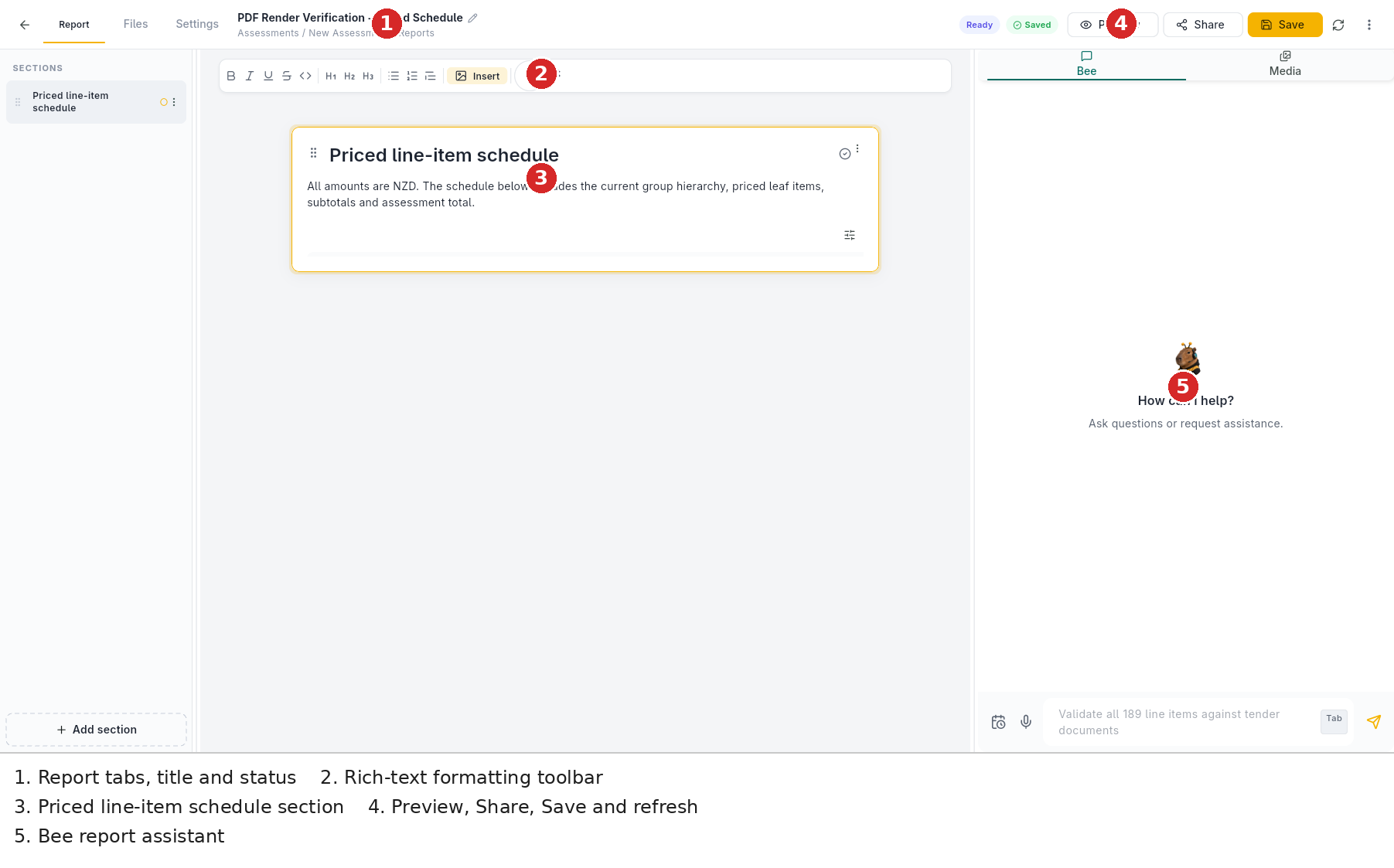
- Report / Files / Settings — switch between document editing, source files and report settings.
- Title and status — the header shows the report name, source path, Ready/Saved states and edit title control.
- Formatting toolbar — bold, italic, underline, headings, lists, alignment, Insert, voice input and Bee-assisted actions.
- Sections rail — reorder sections, select a section and add new sections.
- Document canvas — edit the selected section; the sample priced schedule explains its currency, hierarchy, leaves, subtotals and total.
- Preview / Share / Save — check the rendered document, share it, or persist edits. Refresh and overflow actions are also available.
- Bee / Media panel — ask Bee about the report or switch to media while editing.
Reports are rich text, not just a PDF download. Save after editing, then Preview before sending.
Sharing
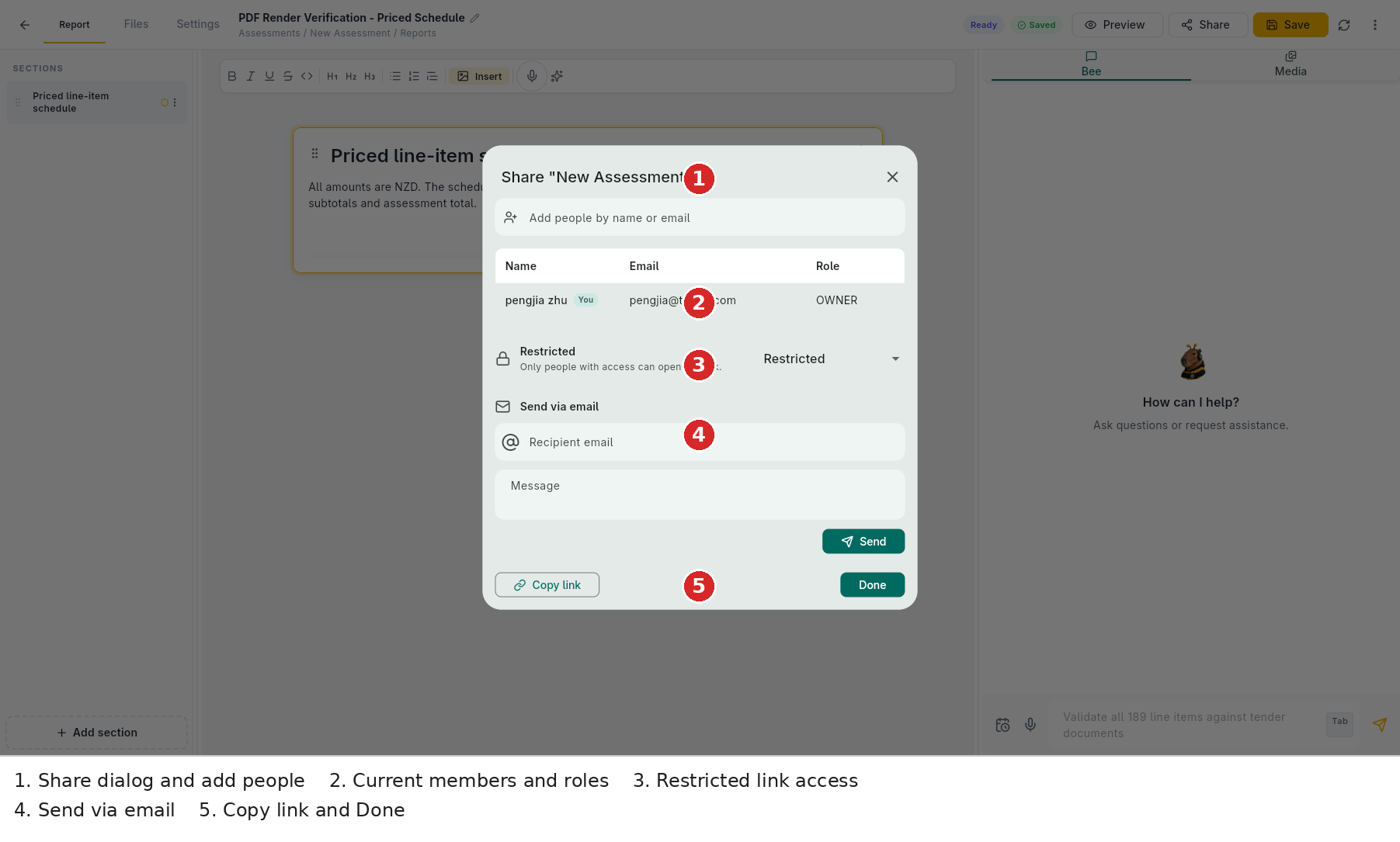
- Add people by name or email — share with a person or team member.
- Current members — see each person's name, email and role; your own OWNER row is visible.
- Access mode — Restricted means only people with access can open the link. Use the selector to change the mode where allowed.
- Send via email — enter a recipient and optional message, then Send.
- Copy link / Done — copy the link for another channel or close the dialog.
Share links use the same Google-Drive-style access model for reports and records. Public/restricted choices should match the sensitivity of the assessment.
Templates
Report generation is template-driven. Upload a PDF, Word file or spreadsheet to extract a reusable layout, or create a template from scratch. Templates can be personal or company-shared.
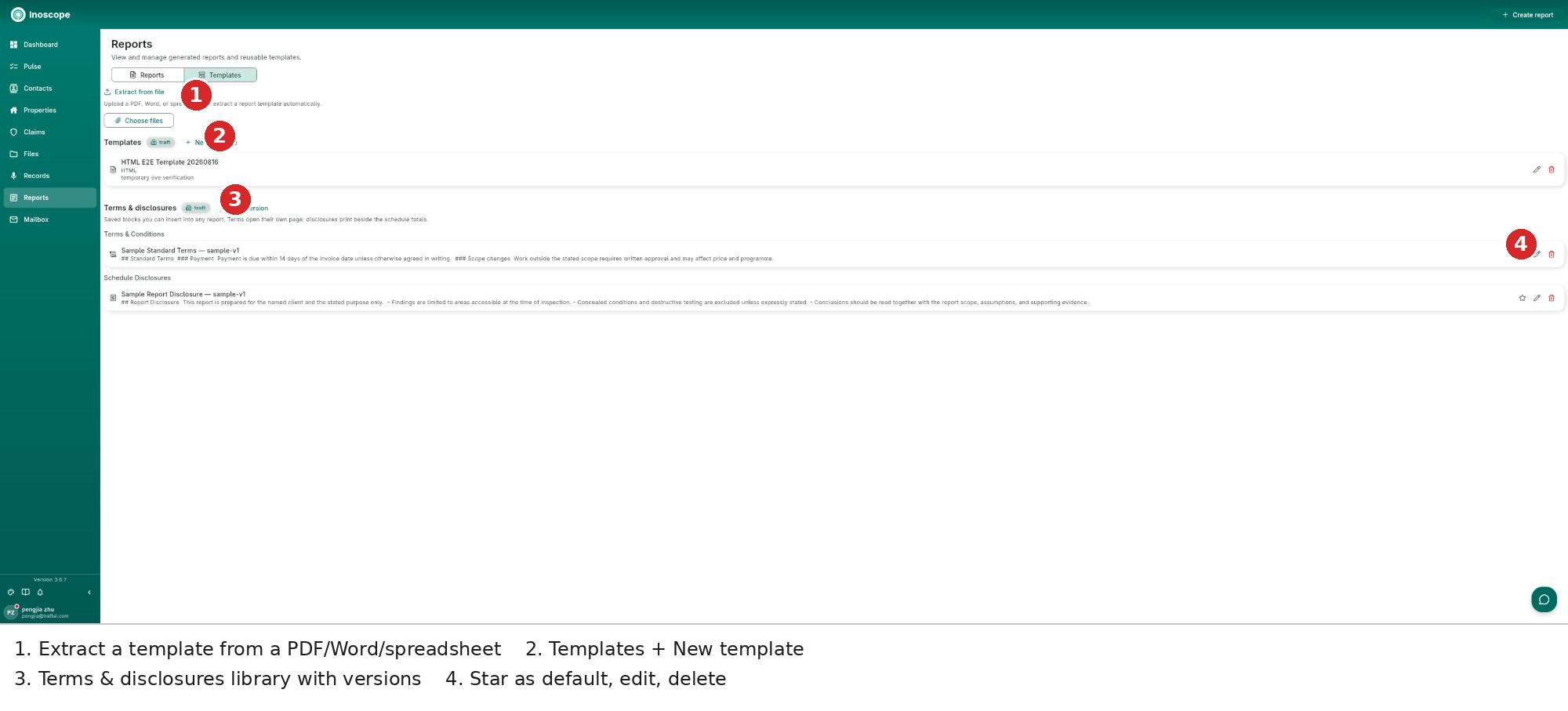
- Extract from file — turn an existing report format into a reusable template.
- Template cards — format, description, edit and delete actions.
- Terms & disclosures — versioned blocks that can be inserted into reports; terms can open on their own page and disclosures can sit beside schedule totals.
Export and Validation
- Preview before sending.
- Save the edited content.
- Export generated reports to PDF or HTML.
- Use the report UID and PDF file UID when troubleshooting a render.
- Read Bee's verifier messages: a PDF can render while still reporting a failed validation request, so inspect the warning rather than assuming the job is complete.