Skip to content

7. Chat Agent (AI Assistant)

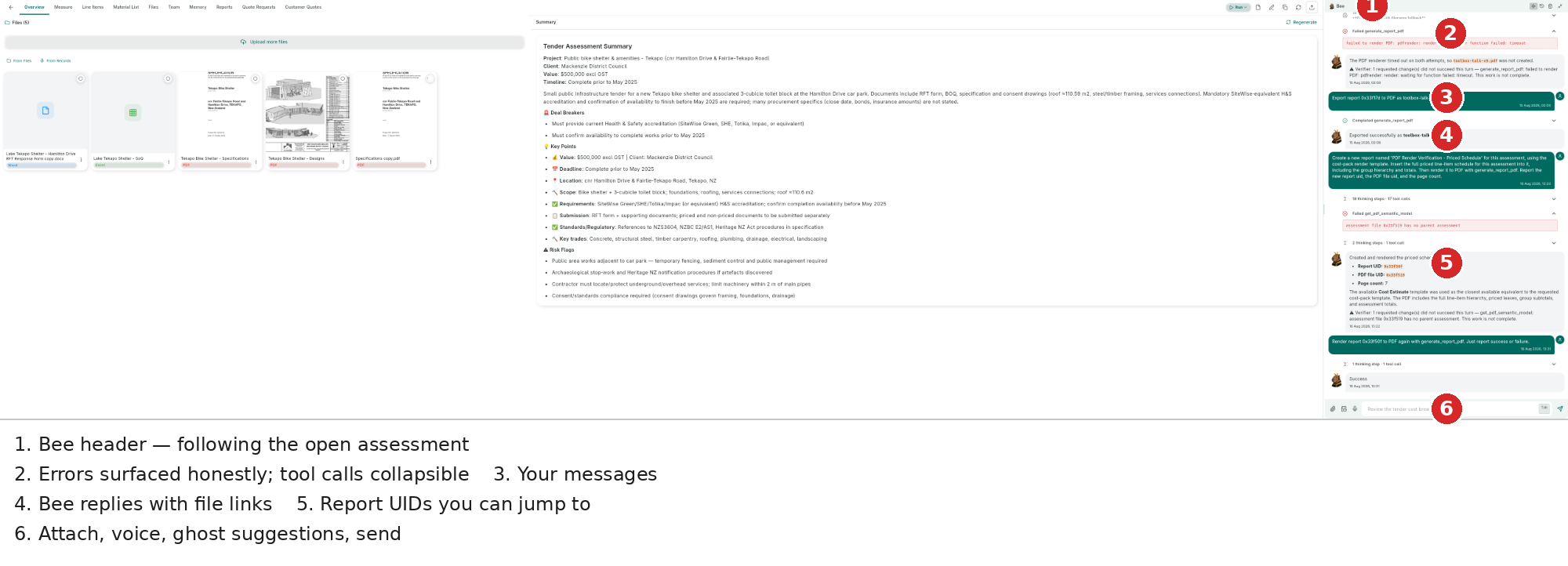
The Inoscope AI chat agent is a conversational assistant embedded in every assessment. It can analyze images, read uploaded documents, create damage items and line items, search for product rates, generate summaries, and execute complex multi-step workflows — all through natural language.

Chat agent panel open in a Tender assessment showing a completed response with structured line item extraction results and follow-up suggestion chips


Pipeline vs Chat — When to Use Each

Every assessment type has a Run button that triggers an automated pipeline, and a Chat panel for interactive work. Both use the same AI under the hood, but they serve different purposes.

PipelineChat
What it doesRuns all assessment steps automatically, end-to-end, without interruptionYou direct what gets done, conversationally, one request at a time
ScopeAlways processes all uploaded images or documents in a single batchYou choose what to focus on — one image, one section, one question
ControlHands-off — the pipeline manages the step sequenceFull control — you decide what runs, what changes, and when
OutputA complete first-draft assessment ready to reviewIncremental additions, edits, and answers
Best forStarting a fresh assessment with images or documents already uploadedRefining results, adding missing items, asking questions, targeted edits

Use the Pipeline when:

  • You have uploaded images or documents and want a full assessment generated in one go
  • You want the fastest path from photos to a costed scope without manual guidance
  • You are processing many images or a large document set — the pipeline handles batching automatically
  • You need the full sequence run in dependency order (e.g. quantities resolved before costs)

Use Chat when:

  • The pipeline has already run and you want to refine specific items
  • You have a targeted request that does not need the full pipeline ("Add a line item for gutter cleaning", "What's the total for plumbing work?")
  • You want to ask questions about what the AI detected or why it made a decision
  • You want to run only part of the workflow — for example, re-price a single group after changing quantities
  • You want to work through a large task step-by-step with review in between (use Plan mode)
  • You want to test different scopes or prompts before committing

Typical workflow

The recommended approach for any new assessment:

  1. Upload images or documents
  2. Run the pipeline — let it generate the full assessment automatically
  3. Review the results in the Details or Line Items tab
  4. Use Chat to refine, correct, add missing items, or ask follow-up questions

The pipeline gets you to a complete first draft quickly. Chat then lets you tune it precisely.


Opening the Chat Panel

Desktop

The chat panel floats on the right side of the assessment detail view as a draggable, resizable panel. It is open by default when you enter an assessment. Use the header controls to minimize, maximize, or close it.

Mobile

On mobile, the chat is the first tab in the assessment detail view. Tap the Chat tab at the top to open it — the same full capabilities are available in the mobile layout, including voice input.


Input Bar

Chat input bar with annotation highlighting the Attach file button, Voice toggle, Hold-to-talk area, and suggestion chips

The input bar at the bottom of the chat panel has three controls:

ControlIconDescription
AttachPaperclipAttach any file — images, PDFs, Word docs, spreadsheets. Files are uploaded to the assessment and sent with your message.
Voice toggleMic / TSwitch between voice and text input (not available on web).
Send / StopArrow / CircleSend your message (arrow), or stop the agent mid-response (circle).

Type your message and press Enter to send, or Shift+Enter for a new line.


Voice Mode

Voice mode active — input shows "Hold to talk" with the voice toggle highlighted. Tap T to switch back to text input.

Voice mode is available on iOS, Android, and desktop (not web).

  1. Tap the mic icon to switch to voice mode. The input area changes to a "Hold to talk" button.
  2. Press and hold the button to record your message.
  3. Release to transcribe — your spoken words are sent automatically.
  4. Tap the T icon to switch back to text input.

Your voice preference is saved across sessions.


Attaching Files

Click the paperclip icon to open a file picker. You can attach:

  • Images — JPEG, PNG, GIF, WebP, BMP (uploaded as assessment images for AI analysis)
  • Documents — PDF, DOCX, XLSX, CSV (uploaded as assessment files, indexed for search)

Attached files appear as chips in the input area before sending. Multiple files can be attached at once. The AI can read, analyze, and reference all attached files in its response.


Sending a Message

  1. Open the chat panel.
  2. Type your question or request (or use voice mode).
  3. Optionally attach files with the paperclip.
  4. Press Enter or click the send button.

Agent Status Indicators

While the agent is working, a status bubble appears in the chat with a spinner and descriptive text. The status updates in real time as the agent moves between phases.

Processing status bubble showing "Deciphering..." with the Stop button highlighted in the input bar

Session statuses:

StatusWhat you see
IdleGreen dot in the header — ready for your next message
ProcessingSpinner with dynamic verb (e.g. "Deciphering…", "Analyzing…")
WaitingAgent has asked you a question — answer before it continues
Compacting"Compacting context…" — agent is summarizing memory to continue a long session

During processing, the status text reflects the active operation:

Status textWhat's happening
Deciphering… / Analyzing…Agent is reading your message and deciding what to do
Reading file…Agent is reading an uploaded document
Analyzing image…Agent is looking at a specific image
Searching documents…Semantic search across uploaded files
Creating line items…Writing new cost items to the assessment
Recording damage…Creating damage items
Searching rates…Looking up product or labor rates
Searching web…Fetching current pricing or specifications
Subagent: Waiting for AI response…A background worker is handling a parallel task
Processing results (step N)…Multi-step task in progress — step N of several

To stop the agent mid-response, click the red stop circle that replaces the send button while processing.

Subagent status — "Subagent: Waiting for AI response..." showing a background worker handling a parallel task


Agent Modes

The agent header shows the current mode. Click Build or Plan in the header to switch.

ModeDescription
BuildDefault — full capabilities. The agent reads, creates, edits, and deletes assessment data directly.
PlanFor complex tasks: the agent writes a step-by-step plan for you to review before executing. Use this when you want to approve the approach before anything is changed.

Using Plan Mode

  1. Ask a complex task (e.g. "Extract all line items from the SOQ, then price them using NZ rates").
  2. The agent creates a numbered plan.
  3. Review and approve, modify, or cancel the plan.
  4. The agent executes each step in sequence.

Suggestion Chips

After each response, the agent shows follow-up suggestion chips — quick prompts based on the current context. Tap any chip to send it instantly without typing.

Agent response with structured output and follow-up suggestion chips at the bottom


User Questions (Multi-select Interface)

Sometimes the agent needs your input before proceeding. It pauses and presents a question with multiple-choice options:

  1. The agent displays the question and options.
  2. Select one or more answers.
  3. The agent continues based on your choices.

This happens when instructions are ambiguous or when a decision affects how subsequent steps are carried out (e.g. "Should I include GST in all line items?").


What the Agent Can Do

Damage Assessments

TaskExample prompt
Analyze images for damage"Analyze all exterior images for rot, paint peeling, and cladding defects"
Create damage items"Document the water staining on the kitchen ceiling — high severity, gradual ingress"
Insurance categorization"Separate sudden damage from gradual deterioration for the insurance claim"
Repair scope"Generate line items to repair the fire-damaged bedroom — materials, labor, and painting"
Compare images"Compare the bathroom photos from before and after the flood"

General Work Assessments

TaskExample prompt
Scope work from images"What work is needed based on the uploaded photos?"
Cost estimation"Estimate the cost of replacing the roof tiles, using Auckland rates"
Create a quote"Build a complete quote for the fence replacement, grouped by materials and labor"
Material search"Search for treated timber pricing for the deck rebuild"
Measurements from images"How big is the area that needs retiling in the bathroom?"

Tender Assessments

TaskExample prompt
Extract line items"Read the uploaded SOQ and extract all line items"
Build hierarchy"Create section groups matching the schedule headers, then add work items beneath each"
Price items"Price all extracted line items using current NZ rates"
Search specifications"What does the spec document say about waterproofing requirements?"
Summarize documents"Summarize the key requirements from each uploaded tender document"

Best Prompt Practices

Be specific

Instead of…Try…
"Check the images""Analyze the kitchen ceiling images for water staining and mold"
"Add some costs""Create line items for replacing damaged plasterboard in the bathroom — include materials and labor"
"What's wrong?""What type of damage is visible in image 3, and what's the likely cause?"
"Price it""Price all line items using current Christchurch market rates"

Reference specific items

  • "Look at the third image in the Exterior group"
  • "Update the plasterboard line item quantity to 12 square meters"
  • "What's the severity rating of the moisture damage near the window?"

Ask for structured output

  • "Create a cost breakdown by room for all repairs"
  • "List all damage items sorted by severity, highest first"
  • "Summarize the assessment with separate sections for each damage type"

Provide context

  • "This is a 1960s weatherboard house — check for asbestos-containing materials"
  • "The property is in Auckland, New Zealand — use NZ market rates"
  • "This is for an insurance claim — categorize all damage as sudden vs gradual"
  • "The client has a $50,000 budget — flag any items that push over that"

Chain requests

Ask follow-up questions in the same conversation. The agent remembers everything said in the current session:

  • "Now group those line items by trade (plumbing, electrical, painting)"
  • "Add a 15% contingency to all materials"
  • "Which of the items we just priced are over $5,000?"

Use Plan mode for multi-step work

Trigger Plan mode for tasks that span many images or many line items:

  • "Analyze all images, detect damage, and create line items with costs for everything"
  • "Extract all items from the tender SOQ, then price them and group by trade"
  • "Complete a full damage assessment and generate the repair scope"

Session Management

The chat keeps a conversation history for the current session. You can scroll back to review previous exchanges.

Clearing the Chat

Use the trash icon in the chat header to clear the message history and start a fresh conversation. Clearing chat does not delete any assessment data (damage items, line items, files) that the agent already created.


Desktop Panel Controls

On desktop, the floating chat panel supports:

ActionHow
MoveDrag the panel header
ResizeDrag any edge or corner
MinimizeClick the minimize icon in the header
MaximizeClick the expand icon in the header

Next Steps