Tender Assessment
A Tender Assessment is Inoscope's document-driven quoting workflow. Upload your Schedule of Quantities (SOQ), Bill of Quantities (BOQ), scope of works, drawings, and specifications — then let the AI extract every line item, build the cost hierarchy, price everything against your rate book, and produce a fully-costed estimate ready for export.

Creating a Tender Assessment
Follow the standard assessment creation flow described in Assessments. When prompted to choose a type, select Tender Assessment.
The same optional fields apply (property, description, date inspected). No damage-event or insurance fields are required for tenders.
Layout
Every tender assessment has a top navigation bar with five tabs and a persistent AI chat panel on the right side of the screen.
Tab Bar
| Tab | Purpose |
|---|---|
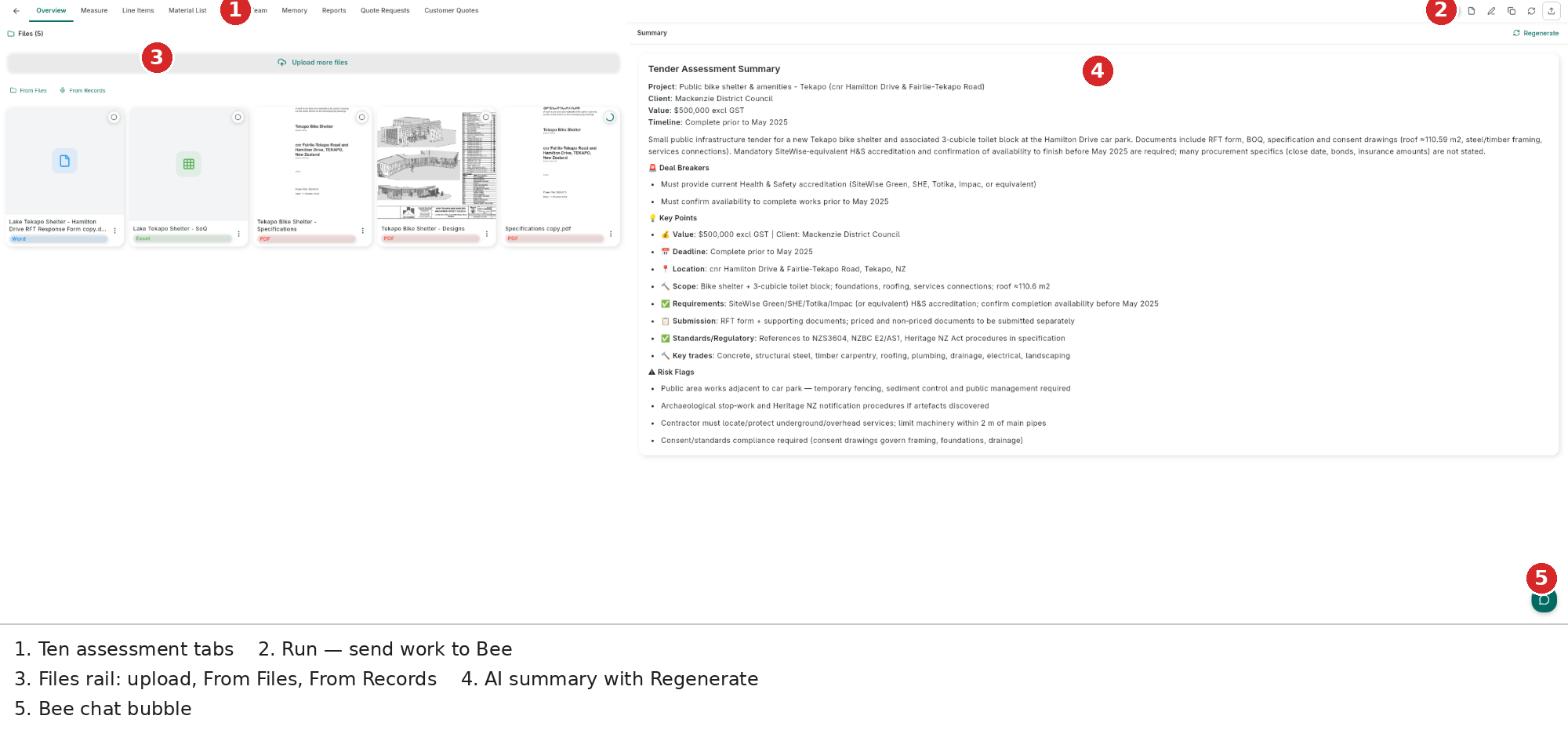
| Overview | Upload tender documents and view the AI-generated project summary |
| Measure | Browse documents, annotate drawings, and extract measurements |
| Line Items | Review, edit, and manage the full costed hierarchy |
| Files | List of all uploaded files with status and management actions |
| Team | Manage who has access to the assessment |
Header Actions
The right side of the header bar contains five action buttons:
| Button | Description |
|---|---|
| Run (play icon) | Opens the scope generation dialog to extract and price line items from uploaded documents |
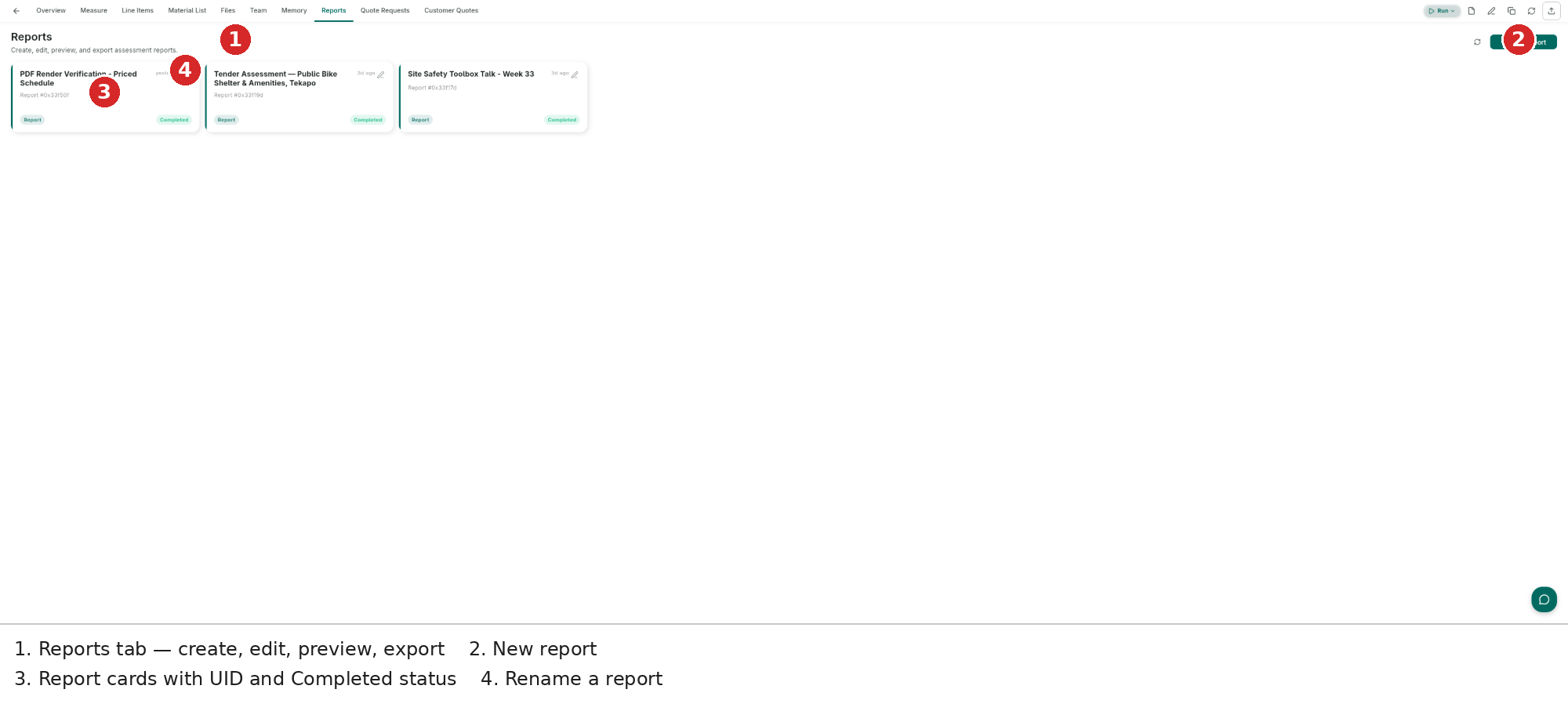
| Generate Report (document icon) | Sends a report generation request to the AI agent and opens the chat panel |
| Snapshots (copy icon) | Create and browse point-in-time copies of the assessment |
| Refresh (refresh icon) | Reload assessment data from the server |
| Export (export icon) | Export the assessment as CSV, PDF, Fergus, or Xero |
AI Chat Panel
The chat panel (labelled Inoscope) is always visible on the right side of the screen. It includes:
- Build / Plan mode toggle in the header
- Clear chat and Undock buttons
- Message history with agent responses
- Suggestion chips — contextual follow-up prompts after each response
- Input bar with Attach (paperclip), Voice (mic), and Send buttons
See Chat Agent for full documentation.
Overview Tab

The Overview tab has two panels side by side.
Left Panel — Documents
Shows all uploaded tender documents as file cards. Three buttons at the top let you add files:
| Button | Action |
|---|---|
| Upload more files | Open a file picker to upload PDFs, DOCX, XLSX, CSV, or images |
| From Files | Import a file already uploaded to the assessment's Files tab |
| From Records | Attach a transcript or summary from an audio recording |
Each file card shows:
- File type icon
- File name and size
- Processing status badge (green = indexed, orange = processing, red = error)
- Three-dot menu with Download, Delete, and Reindex options
Right Panel — Project Summary
After files are indexed the AI generates a project summary with three sections:
| Section | Content |
|---|---|
| Deal Breakers | Critical risks or conditions that could make the tender unviable |
| Key Points | Important requirements, scope highlights, and constraints |
| Risk Flags | Uncertainties, missing information, or items needing verification |
A Regenerate button at the top of the panel forces a fresh summary. The summary regenerates automatically when new files are added.
Measure Tab

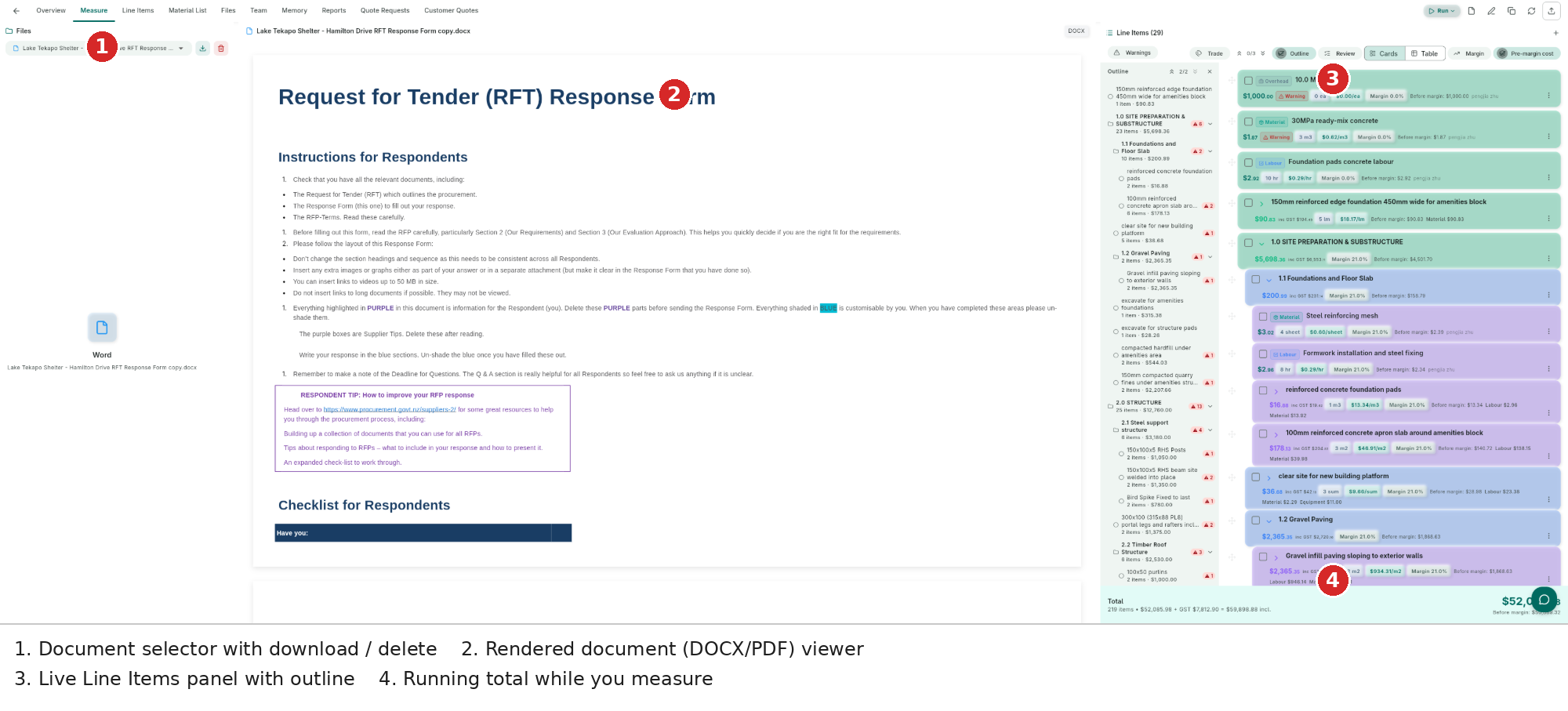
The Measure tab is a three-panel workspace:
Left Panel — File & Page Navigator
- File dropdown — switch between uploaded documents
- Pages section — thumbnail grid of all pages; click a thumbnail to jump to that page
- Download and Delete buttons for the selected file
Center Panel — Document Viewer
Renders the selected document (PDF, DOCX, XLSX, images, CSV).
The toolbar at the top of this panel contains:
| Control | Description |
|---|---|
| Measure (ruler icon) | Open the drawing measurement overlay for the current page |
| Zoom out / in | Decrease or increase zoom level |
| Zoom percentage | Current zoom level display |
| Fit | Reset zoom to fit the document in the panel |
Page navigation arrows and a Page N of M indicator sit at the bottom of the panel.
Right Panel — Line Items
Shows the full hierarchical line item list for this assessment. This is the same data as the Line Items tab, displayed in a compact view alongside the document. An Add line item (+) button is in the panel header, and a Total bar with item count and cost sits at the bottom.
Drawing Measurement
Clicking the Measure (ruler) button in the document viewer toolbar opens the measurement overlay — a full-screen workspace combining drawing annotation tools with the AI chat panel.

Drawing Toolbar
| Tool | Description |
|---|---|
| Select | Select and reposition existing annotations |
| Draw | Freehand annotation |
| Erase | Remove individual annotations |
| Line | Draw a straight line |
| Rectangle | Draw a rectangular box or area |
| Polygon | Draw a multi-point closed shape |
| Move | Pan the canvas |
| Zoom In / Zoom Out | Zoom the document |
| Reset | Reset zoom and pan to default |
| Undo / Redo | Step through annotation history |
| Clear | Remove all annotations |
A scale chip (e.g., 1:150 A3) in the top-right of the toolbar shows the scale detected from the drawing. The AI reads this automatically when calculating real-world dimensions.
Running a Measurement
- Navigate to the drawing page using the page thumbnails on the left.
- Click Measure in the document viewer toolbar.
- Annotate the area you want measured — for example, use Polygon to outline a room or Line to mark a wall run.
- In the chat panel on the right, describe what you want:
- "Measure the floor area of the polygon I drew"
- "Calculate the perimeter of the outlined zone"
- "Use the scale bar and give me the room dimensions"
- The AI reads your annotations and the detected drawing scale, then returns the result with a step-by-step explanation. Computed dimensions are displayed as overlays directly on the drawing.
Click Close measurement (the X button in the top-left) to exit the overlay and return to the Measure tab.
Line Items Tab

The Line Items tab shows the full costed hierarchy.
Header Controls
| Control | Description |
|---|---|
| Search | Filter items in real time by name |
| Collapse all (down-arrow icon) | Close all GROUP items |
| Expand all (up-arrow icon) | Open all GROUP items to show children |
| + Add Item | Open the Add Line Item dialog to create a cost item manually |
Hierarchy Structure
Line items are organized as a tree of groups and leaf items:
Site Works (Group)
├── Site Clearance 476 m² $0.00/m² $0.00
├── Bulk Earthworks 300 m² $0.00/m² $0.00
├── Site Drainage 1 lot $0.00/lot $0.00
└── Site Services Connection 1 lot $0.00/lot $0.00
Substructure (Group)
├── Concrete Slab & Footings 188.51 m² $0.00/m² $0.00
└── Under-Slab Services 1 lot $0.00/lot $0.00- Group rows (shaded) are section headers; their cost is the sum of all children. They show a child-count badge and can be expanded/collapsed.
- Leaf rows are the actual cost items (Material, Labour, Equipment, Subcontract, Overhead, Site Service). Each shows quantity, unit, unit price, and total cost.
- A Warning badge appears on items that have not yet been priced or have other issues.
- Costs roll up automatically — editing a child immediately updates all parent totals.
Item Row Actions
Each row has three buttons on the right:
| Button | Action |
|---|---|
| Edit (pencil) | Open the edit dialog to change name, quantity, unit price, margin, discount, or notes |
| Delete (circle-minus) | Remove the item (groups: removes all children too) |
| More (three-dot) | Additional options |
Cost Formula
Cost = Unit Price × Quantity × (1 + Margin) × (1 - Discount)Total Bar
A sticky bar at the bottom always shows:
N Items • $0.00 + GST $0.00 = $0.00 incl.Files Tab

The Files tab lists every file attached to the assessment. Each row shows:
- File name with type icon
- File type (PDF, DOCX, etc.)
- Size
- Upload date
- Download and Delete buttons
An Upload files button at the top lets you add more files directly from this tab.
Team Tab

The Team tab controls who can access the assessment.
- Search users — filter the members list
- + Add User — invite a user by email and assign a role
| Role | Permissions |
|---|---|
| Owner | Full access — edit, delete, manage team |
| Admin | Edit content and manage team |
| Editor | Add and modify line items, files, and content |
| Viewer | Read-only |
| Contributor | Add content but cannot modify existing items |
See Team Collaboration for full instructions.
Run Scope Generation
The Run (play) button in the header launches a 7-step AI pipeline that reads all indexed documents and produces a fully-costed line item hierarchy. The pipeline processes every document in one automated batch — use the Chat Agent to refine results, re-price individual items, or ask questions after the run. For a full comparison of pipeline vs chat, see Pipeline vs Chat.

Starting a Run
- Upload your tender documents in the Overview tab and wait for all status badges to turn green.
- Click the Run button in the header.
- The dialog asks "What would you like to do?"
- Enter a custom instruction (e.g., "Focus on civil works only" or "Use Christchurch rates"), or
- Leave it blank to run with default settings.
- Click Run.
The assessment navigates to the Line Items tab automatically and a status chip in the header shows pipeline progress.
Pipeline Steps
| Step | What happens |
|---|---|
| 1. Extract | Reads all indexed documents and pulls out every line item with its hierarchy, quantities, and units |
| 2. Split | Breaks composite items into separate Material, Labour, and Equipment children |
| 3. Consolidate | Merges duplicate equipment items shared across sections (e.g., scaffolding) |
| 4. Sequence | Detects construction dependencies between items |
| 5. Price | Searches your rate book and public rates by location, applies wastage and regional cost rules |
| 6. Total | Calculates the full assessment total and all group subtotals |
| 7. Validate | Checks for unpriced items or structural issues and auto-corrects where possible |
To stop the pipeline mid-run, click the red stop circle that appears in the chat panel's input bar.
Snapshots
Snapshots are read-only point-in-time copies of the assessment. Use them to preserve your estimate before a major revision or pipeline re-run.
Creating a snapshot:
- Click the Snapshots button in the header.
- Click Create Snapshot in the dialog.
- The snapshot is saved with a timestamp and appears in the paginated list.
Viewing a snapshot:
- Open the Snapshots dialog.
- Click any snapshot in the list (10 per page).
- The snapshot opens as a read-only view — no edit buttons are shown.
Export
Click the Export button in the header to export the assessment.
| Format | Description |
|---|---|
| CSV | Flat or grouped spreadsheet of all line items |
| Formatted report with line items, totals, and assessment metadata | |
| Fergus | Job import for Fergus job management |
| Xero | Invoice export with GL account code mapping |
See Export & Integrations for format-specific configuration.
Best Practices
Upload all documents before running — wait for all status badges to turn green in the Overview tab before clicking Run. The AI cross-references the full document set in one pass.
Attach site notes via "From Records" — if you have site visit recordings in the Records section, attach their transcripts. The AI incorporates site-specific conditions into pricing.
Use Plan mode for large SOQs — switch the agent to Plan mode before asking it to extract or price a document with hundreds of items. Review the step-by-step plan before the agent makes any changes.
Review the hierarchy before pricing — after extraction, expand the full hierarchy in the Line Items tab and check that section groupings match your expected structure before asking the agent to price.
Snapshot before re-running — create a snapshot before clicking Run a second time so you can compare against the previous result.
Reference the project location explicitly — if the assessment has no property address, include the location in your prompt: "This project is in Wellington, NZ — use Wellington rates."
Next Steps
- Line Items & Costing — line item types, cost calculation, and rate book
- Chat Agent — voice, file attachment, Build vs Plan modes
- Generate a Report — export a formatted PDF from your estimate
- Export & Integrations — CSV, Fergus, and Xero export configuration