
Line Items & Costing
The Line Items tab is the estimate workspace. It turns evidence and take-off into a reviewable hierarchy of groups, subgroups and priced leaves, with warnings, trade classifications, margins, sources and live totals.
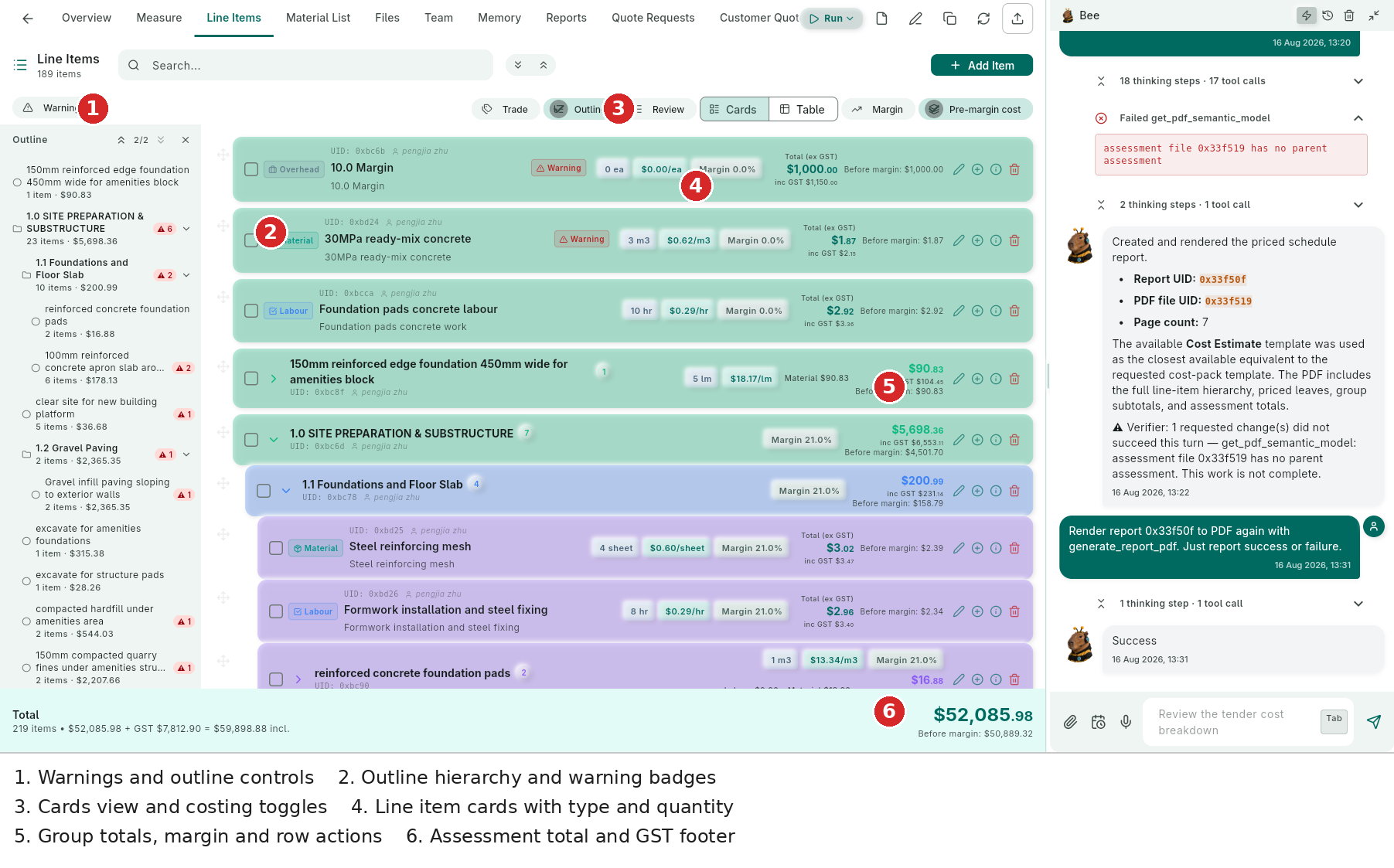
- Warnings — opens the unresolved warning set; badges in the outline show how many warnings sit in each group.
- Outline — a navigable tree with group counts and subtotals. Select a group to jump the main view to that part of the estimate.
- Cards/Table — switch between readable cards and a dense schedule.
- Cards — each row shows UID, owner, type chip, description, quantity/unit, rate, margin, total and edit/info/delete actions.
- Group cards — expandable groups show rolled-up totals, margin and before-margin values.
- Totals footer — item count, ex GST, GST, inclusive total and before-margin cost.
Table View
For large estimates, Table view exposes the schedule as columns and keeps the hierarchy visible with indentation and expand arrows.
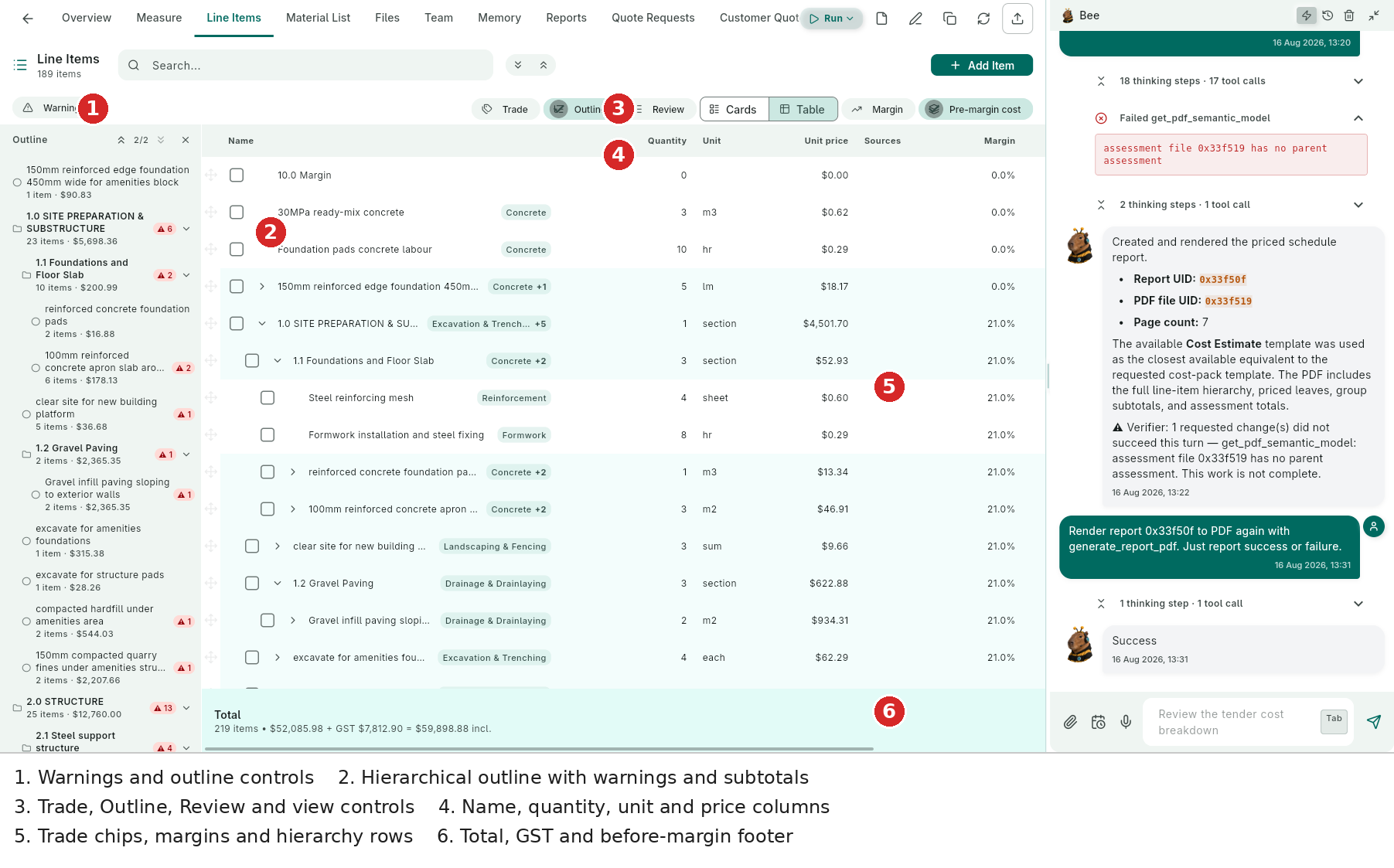
- Outline rail — warning badges such as ▲6, ▲2 and ▲13 sit next to groups; each group shows item count and subtotal.
- Hierarchy navigation — expand/collapse groups and leaves without losing the current table position.
- View controls — Trade, Outline, Review, Cards, Table, Margin and Pre-margin cost.
- Schedule columns — Name, Quantity, Unit, Unit price, Sources and Margin; further columns/actions remain available to the right.
- Trade chips and rows — Concrete, Excavation & Trenching, Reinforcement, Formwork, Landscaping & Fencing and Drainage & Drainlaying classify the work while nested rows preserve the estimate structure.
- Totals — the footer shows the full item count and ex-GST/GST/inclusive calculation alongside the before-margin total.
The table is useful for scanning rates and quantities across many rows; Cards is better when each row needs its description and action controls in context.
Views and Modes
| Control | What It Does |
|---|---|
| Trade | Reorganises the working view by trade so a trade can be reviewed independently. |
| Outline | Shows the hierarchy, counts, subtotals and warning badges. |
| Review | Walks through groups with approval progress and roll-ups. Use it before export or sending a quote. |
| Cards | Presents each row with type, quantity, rate, margin, totals and actions. |
| Table | Presents the dense schedule with columns and indentation for large estimates. |
| Margin | Shows margin information and lets you work with margin or markup. |
| Pre-margin cost | Shows base cost alongside the sell value. |
Warnings and Evidence
Warnings commonly indicate missing rates, zero quantities, incomplete groups or missing measurement links. Clear them before treating the estimate as ready. A warning on a group does not necessarily mean every child is wrong; expand the group and inspect its badge count.
Sources and measurement citations make a row defensible. A reviewer can trace a quantity to the drawing/page or uploaded source that produced it.
Editing a Line Item
Select a row's pencil action to open the editor.
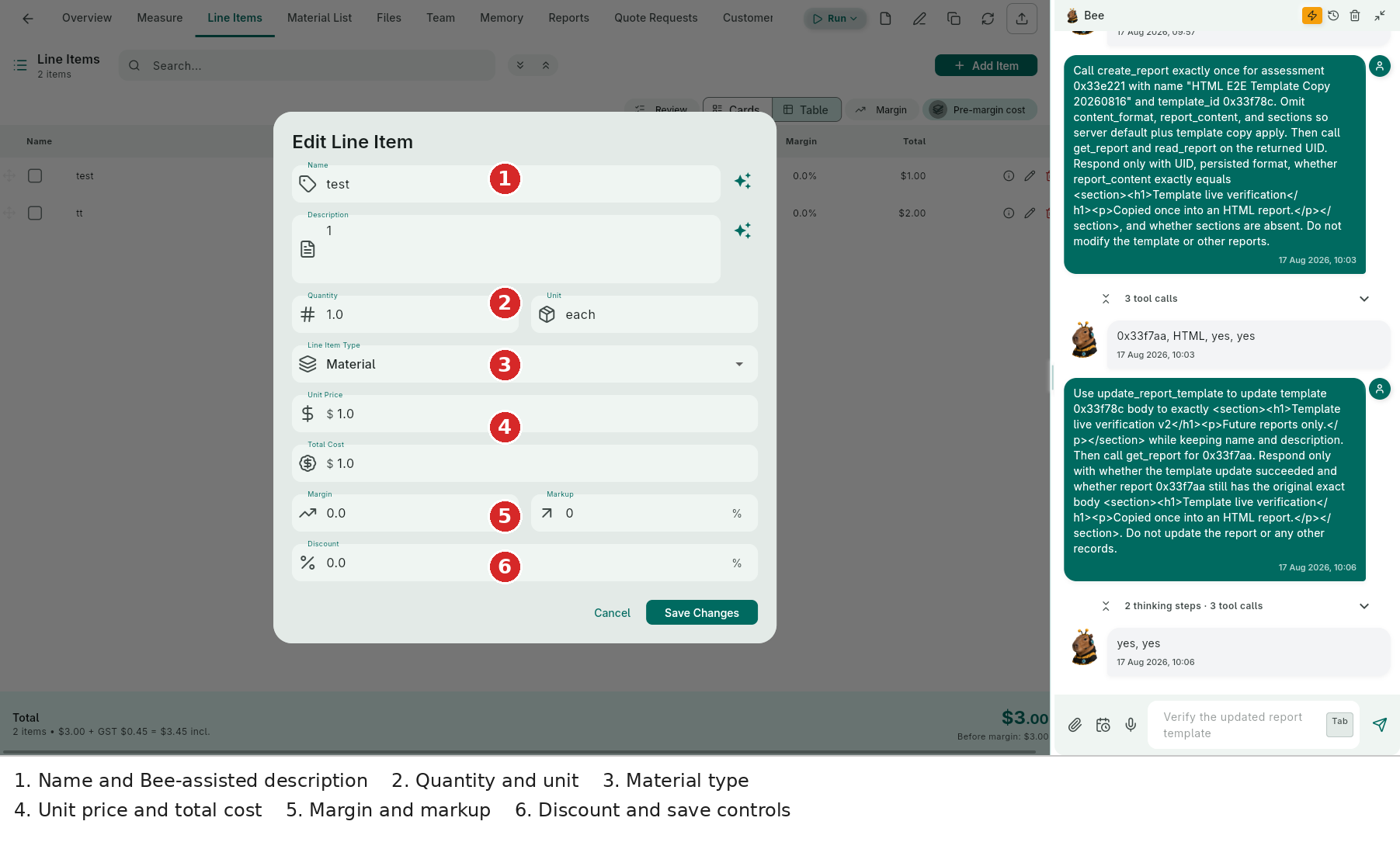
- Name and Description — edit the wording; Bee sparkle actions can help rewrite or complete the fields.
- Quantity / Unit — set the numeric quantity and unit such as each, m2, m3, hr or lm.
- Line Item Type — choose Material, Labour or another configured type.
- Unit Price / Total Cost — inspect the base values that drive the row total.
- Margin / Markup — use the commercial method appropriate to the job.
- Discount / Save Changes — apply a row discount and save only after checking the resulting total.
You can also add a new item from + Add Item, duplicate or delete rows, link measurements, and let Bee make changes through a reviewable chat action.
Batch Review
Tick multiple rows to reveal batch actions. Use this for batch delete or consistent updates, then return to Review mode to confirm group roll-ups. Take a Snapshot before a broad change or a Bee rerun.
Totals, Margin and Exports
- Margins roll up from leaves to groups and the assessment total.
- Markup is a percentage of cost; margin is a percentage of selling price.
- Pre-margin cost shows the base cost before commercial uplift.
- The bottom bar always keeps ex GST, GST, inclusive and before-margin totals visible.
- Export the schedule to XLSX or CSV from the assessment header; export Material List separately for ordering.