
Team Collaboration
Work together on assessments, share files and records, manage who's in your company, and hand work to teammates — with roles and access levels you control.
The Assessment Team Tab
Every assessment has a Team tab:
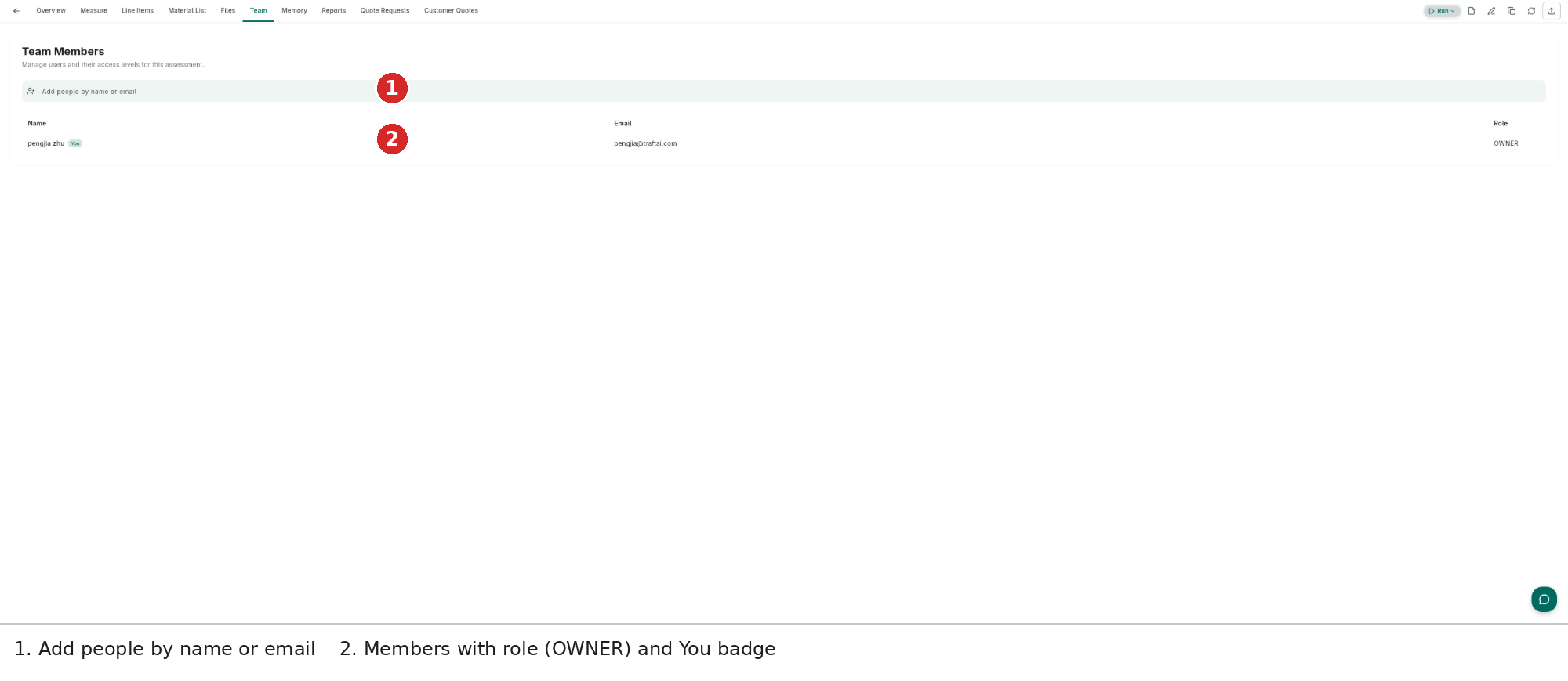
- Add people by name or email — invite company members or external addresses into this assessment.
- Members — name, email and role (OWNER, admin, viewer…); the You badge marks you.
You can also share at creation time: the create-assessment dialog's Share with Team gives company users admin access the moment the assessment exists.
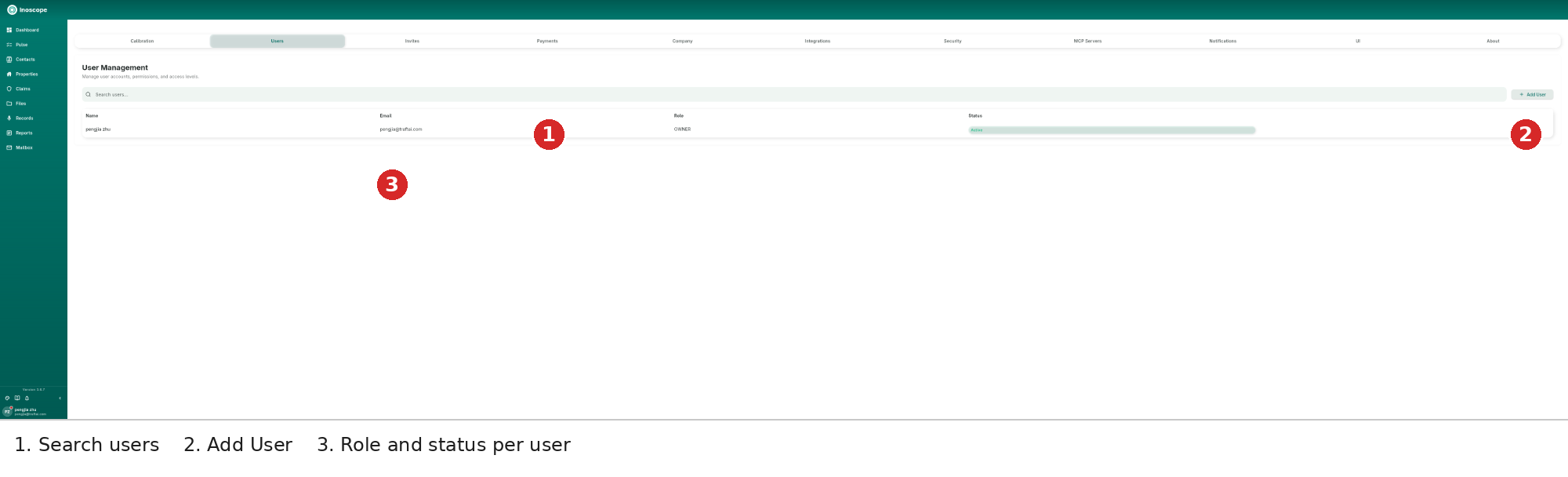
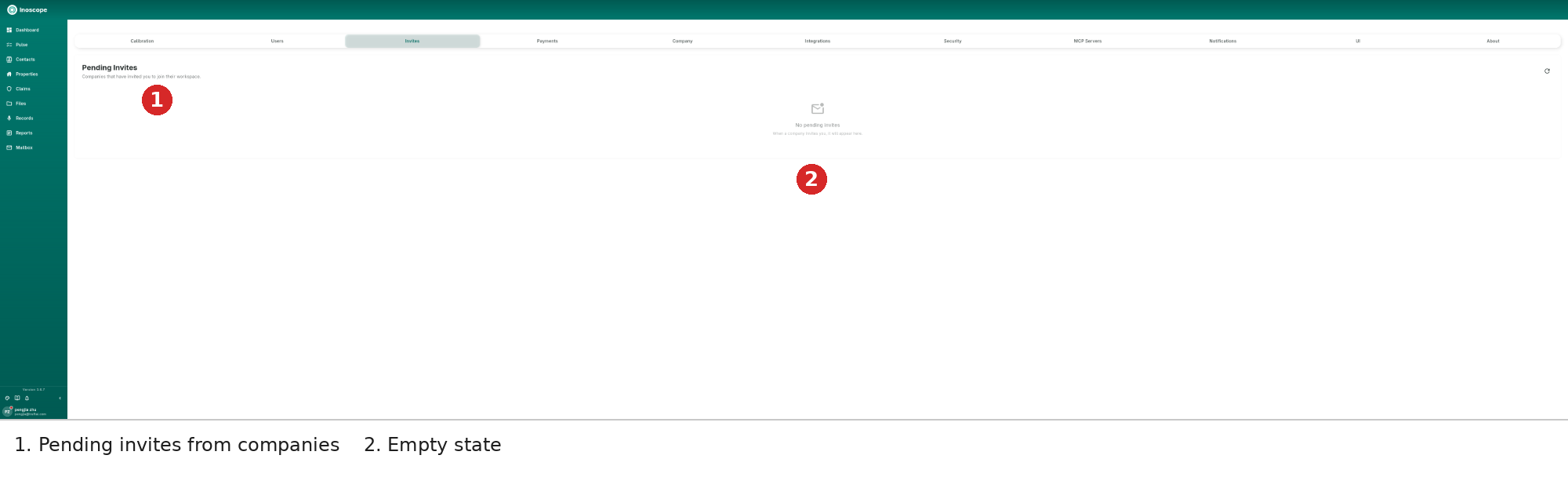
Company Users & Invites (Settings)
| Tab | Purpose |
|---|---|
| Users | Search users, Add User, and see each person's role and status (Active/Suspended) |
| Invites | Companies that have invited you to join their workspace; accept or decline |
Sharing Files, Records & Reports
- Share links (3.5.6) — one unified, Google-Drive-style dialog for reports and records: choose public or restricted access; links open straight back in the app.
- Smoother sharing (3.6.3) — shared items, including company-owned content, open and appear reliably; switching share roles no longer clears your selections.
- The dashboard's Team tab collects everything shared with you.
Company Identities
- Mailbox sending identities are shared across the company — one voice to the outside world (see Mailbox).
- Brand logos uploaded in Settings → Company appear on reports for the whole team (see Settings).