14. Export & Integrations
Inoscope lets you export assessment data to CSV files and send it directly to Fergus (job management) with a few clicks.

Opening the Export Dialog
- Open the assessment you want to export.
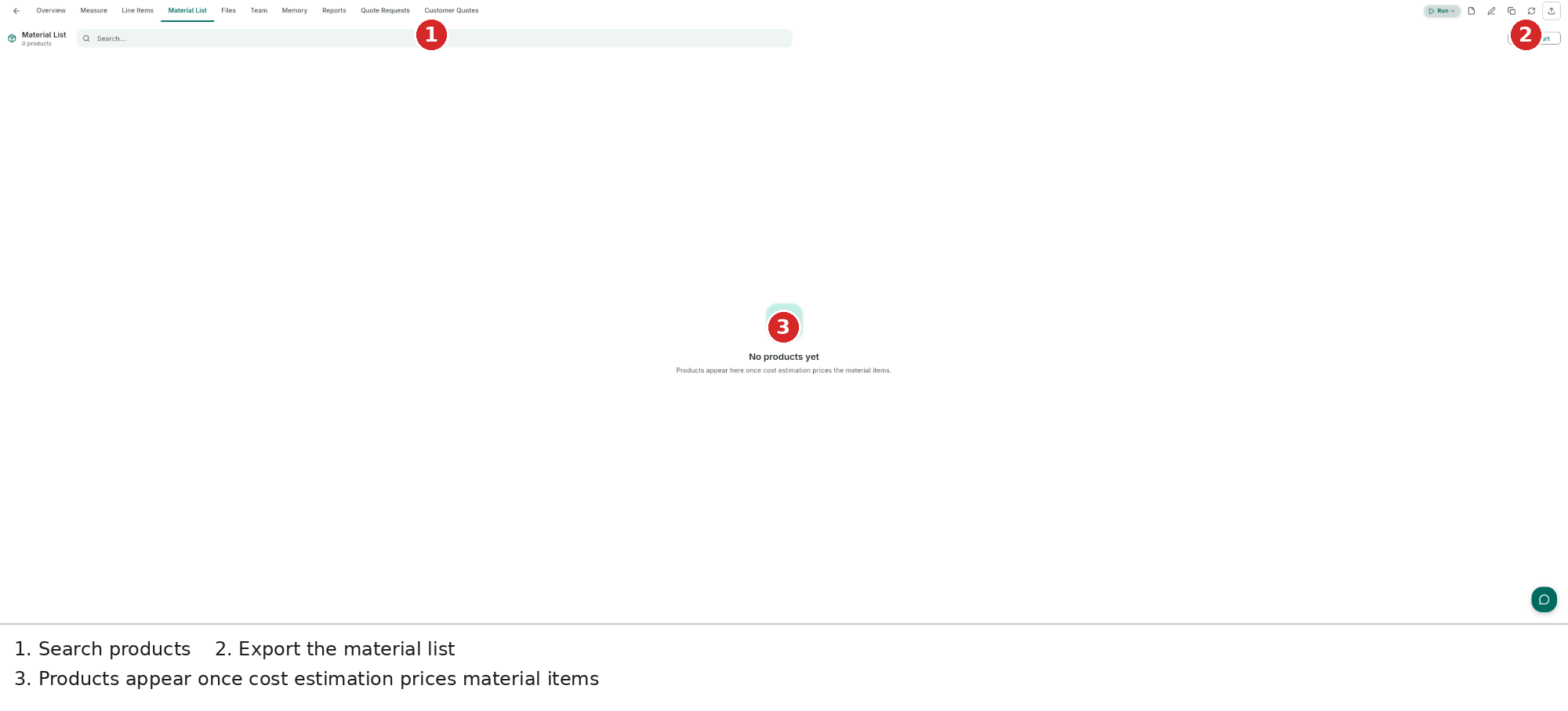
- Click the Export (↑) button in the top action bar.
- The Export Dialog appears — select your format or integration from the dropdown.
CSV Export
Export your line items as a CSV spreadsheet.

Column Selection
Choose which columns to include. Name is always included and cannot be removed.
| Column | Default | Description |
|---|---|---|
| Name | Always on | Line item name (cannot be removed) |
| Type | On | Item type (Material, Labour, Equipment, etc.) |
| Quantity | On | Quantity value |
| Unit | On | Unit of measure (m², hr, lot, etc.) |
| Unit Price | On | Rate per unit |
| Total Cost | On | Calculated total (Unit Price × Quantity × Margin × Discount) |
| Source | On | Document or image the item was sourced from |
| Margin | Off | Margin percentage applied to the item |
| Discount | Off | Discount percentage applied to the item |
Additional Option
| Option | Description |
|---|---|
| Hide leaf items | Collapse sections that only contain leaf items into a single row, showing just the group total |
How to Export
- In the Export Dialog, select CSV Export from the dropdown.
- Check or uncheck columns as needed.
- Toggle Hide leaf items if you want a condensed output.
- Click Export.
- The CSV file downloads automatically.
Fergus Integration
Export assessments directly to Fergus to create jobs with quoted line items.

Setting Up Fergus

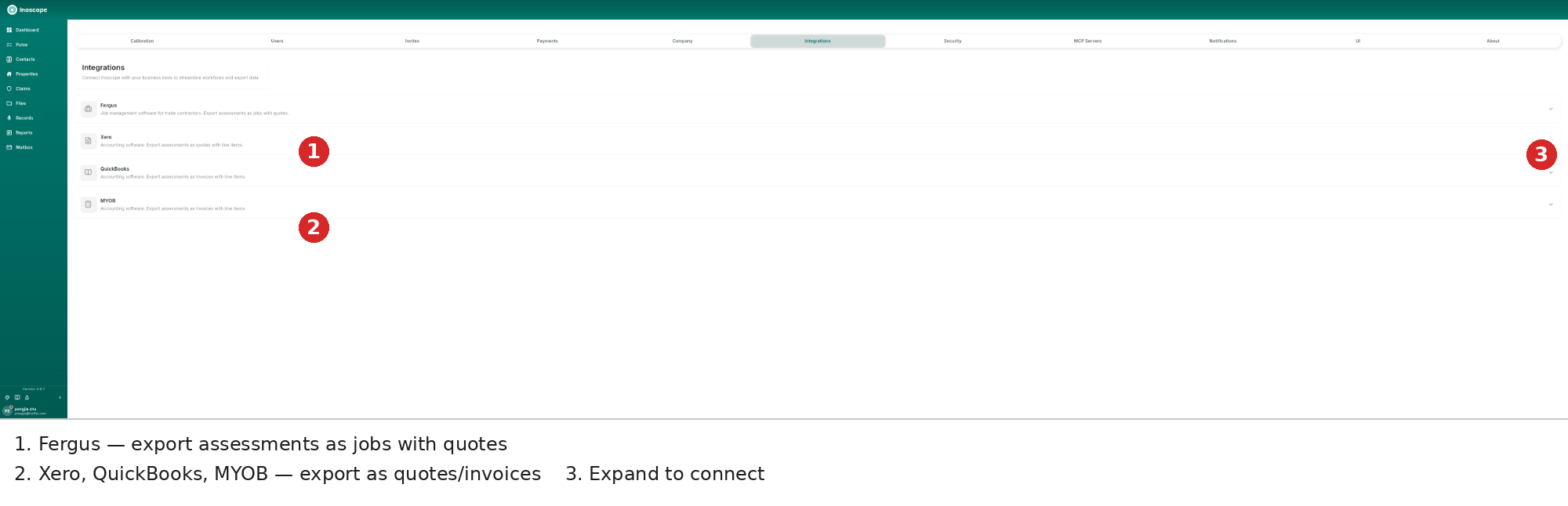
- Go to Settings → Integrations tab.
- Click Fergus to expand the integration panel.
- Fill in the account details:
| Field | Description |
|---|---|
| Display Name | Label shown in the export dropdown (e.g., "BSG") |
| API Token | Your Fergus API token — stored securely and not displayed after saving |
- Set Line Item Type Mappings — enter the Fergus sales account code to use for each line item type:
| Mapping | Description |
|---|---|
| Material Sales Account Code | Account code for material line items |
| Labour Sales Account Code | Account code for labour line items |
| Equipment Sales Account Code | Account code for equipment line items |
| Subcontract Sales Account Code | Account code for subcontract line items |
| Overhead Sales Account Code | Account code for overhead line items |
| Site Service Sales Account Code | Account code for site service line items |
- Click Test Connection to verify the token works.
- Click Save Settings.
Multiple Accounts
To connect more than one Fergus workspace, click + Add Account in the Accounts section. Each account appears as a separate option in the export dropdown (e.g., "Fergus - BSG").
Exporting to Fergus
- Open an assessment and click Export.
- Select your Fergus account from the dropdown (e.g., "Fergus - BSG").
- Fill in the three fields:
Customer
Search your Fergus customer list by name. The dropdown shows each customer's name, email, phone, and ID.
- Type to filter — results paginate automatically as you scroll.
- If the customer does not exist, click + Create New Customer and fill in:
| Field | Required |
|---|---|
| Customer Name | Yes |
| First Name | No |
| Last Name | No |
| Company | No |
| No | |
| Phone | No |
Site
Search Fergus sites by name or address. The Site field is independent — you can select a site without selecting a customer first.
- Type to filter — results show contact name, site name, and address.
- If the site does not exist, click + Create New Site and fill in:
| Field | Required |
|---|---|
| Site Name | Yes |
| First Name | No |
| Last Name | No |
| Company | No |
| Address | Yes |
| City | No |
| Postcode | No |
Job
Search existing Fergus jobs. A customer must be selected before searching jobs — the field shows "Select a customer first" until a customer is chosen. Results show job title, description, type, and ID.
- If the job does not exist, click + Create New Job (available once a customer is selected) and fill in:
| Field | Required |
|---|---|
| Job Title | Yes |
| Description | Yes |
- Click Export to send the line items to Fergus.
- The assessment line items are created as quote items on the selected job.
Xero Integration
Xero integration is not yet available. The Xero card is shown in Settings → Integrations but cannot be connected at this time. It will be enabled in a future release.
Managing Integrations
Go to Settings → Integrations to manage all connected integrations.

Each integration card shows its current status. For Fergus:
- Active (green badge) — the integration is connected and ready to use
- Click the card to expand account details, update settings, or add accounts
- Use Test Connection to verify the API token is still valid
- Use Disable Account to deactivate an account without deleting its settings