
8. Report Generation
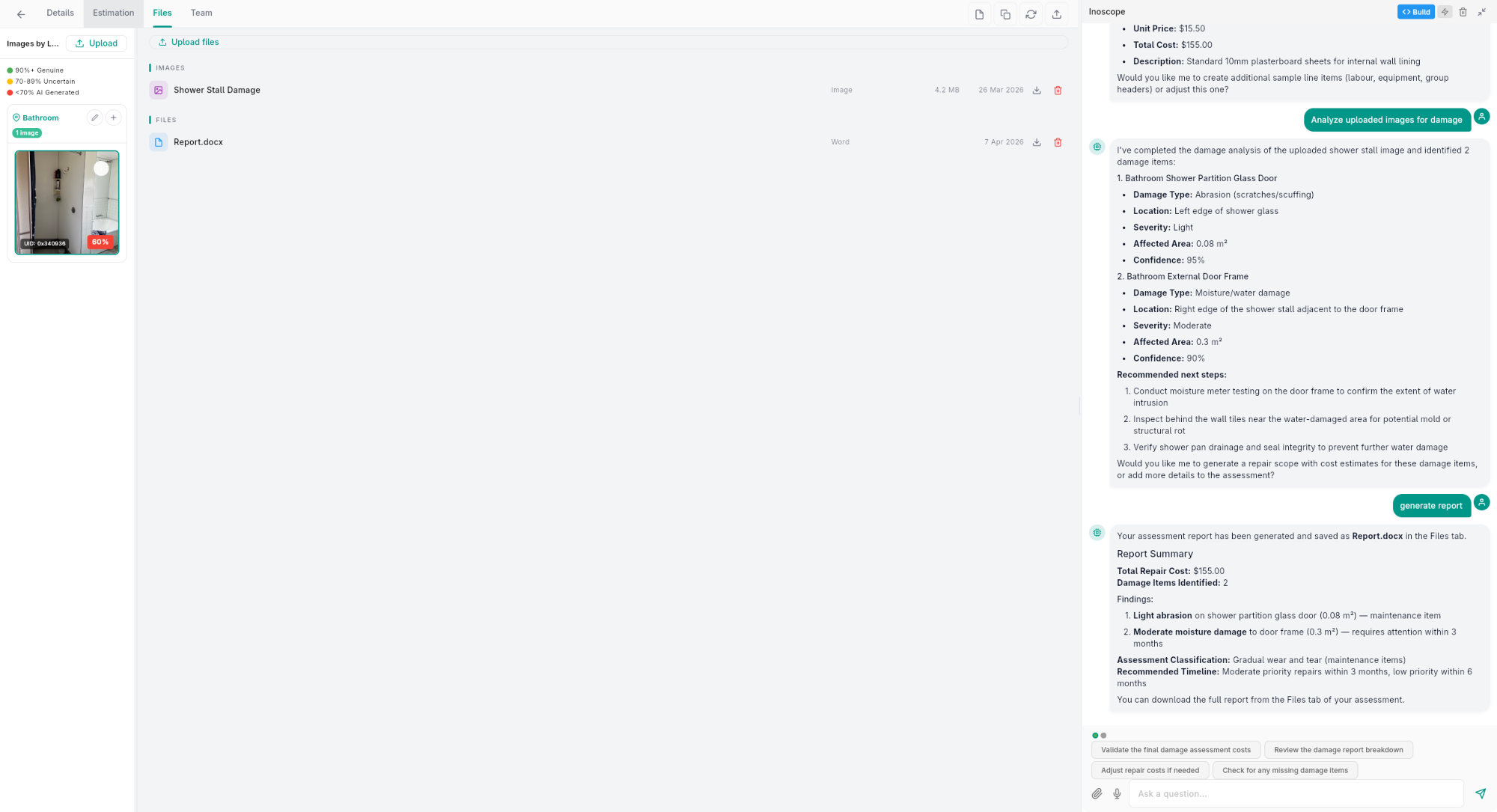
Once your assessment is complete — with images uploaded, damage detected, and costs estimated — you can generate a professional PDF report.
Generating a Report
There are two ways to generate a report:
- Click the Generate Report (📄) icon in the assessment's top action bar, or
- Ask the AI chat agent: "Generate a report"
The agent processes your assessment data, creates a Report.docx file, and saves it to the assessment's Files tab. A summary of the report is shown in the chat with key findings, total cost, and recommended next steps.
Report Content
A generated report typically includes the following sections:
| Section | Content |
|---|---|
| Cover Page | Assessment name, property address, date, assessor details |
| Overview | Assessment summary, property description, scope of inspection |
| Images | All inspection photos with annotations and damage overlays |
| Damage Items | Complete list of detected damage with type, cause, severity, and location |
| Line Items | Itemized cost breakdown with quantities, unit prices, and totals |
| Cost Summary | Total estimated cost with breakdowns by category/section |
| Conclusions | AI-generated summary and recommendations |
Downloading Reports
- Go to the assessment detail screen.
- Reports appear in the report list (accessible via the files or reports section).
- Click Download to save the PDF to your device.
- You can also view the report directly in the browser.
Report Status
Reports go through these stages:
| Status | Meaning |
|---|---|
| Draft | Report is being prepared |
| In Progress | Report is being generated |
| Completed | Report is ready for download |
| Error | Report generation failed — try again |
If a report fails, you can retry the generation. Check that your assessment has sufficient data (images, damage items, or line items) for a meaningful report.
AI-Generated Summaries
The report includes an AI-generated assessment summary that:
- Describes the overall property condition
- Highlights the most significant damage findings
- Provides context for the cost estimates
- Offers repair recommendations
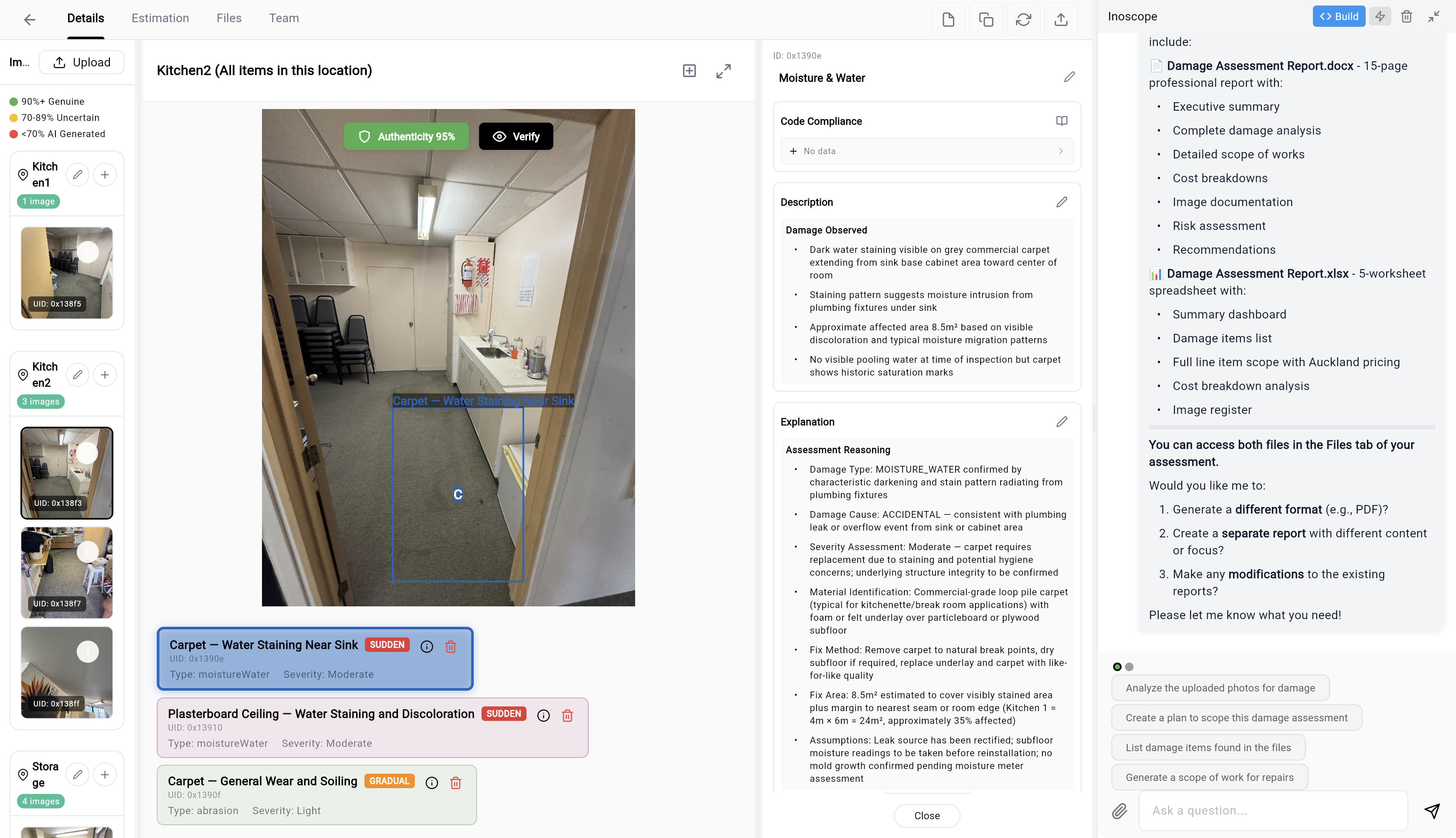
The chat panel also offers follow-up options: generate a different format, create a separate report with different content, or make modifications to the existing report.
You can also generate a standalone summary without a full report using the AI chat agent — ask it to "summarize this assessment."
Multiple Reports
You can generate multiple reports for the same assessment. This is useful when:
- You've updated damage items or line items and want a refreshed report
- You need different versions for different stakeholders
- The first report had an error
Each report is timestamped and stored independently.