
Measurement Panel
The Measurement Panel is an AI-powered tool for annotating images and extracting precise measurements. It is accessible from the Measure tab in Damage and General Work assessments.
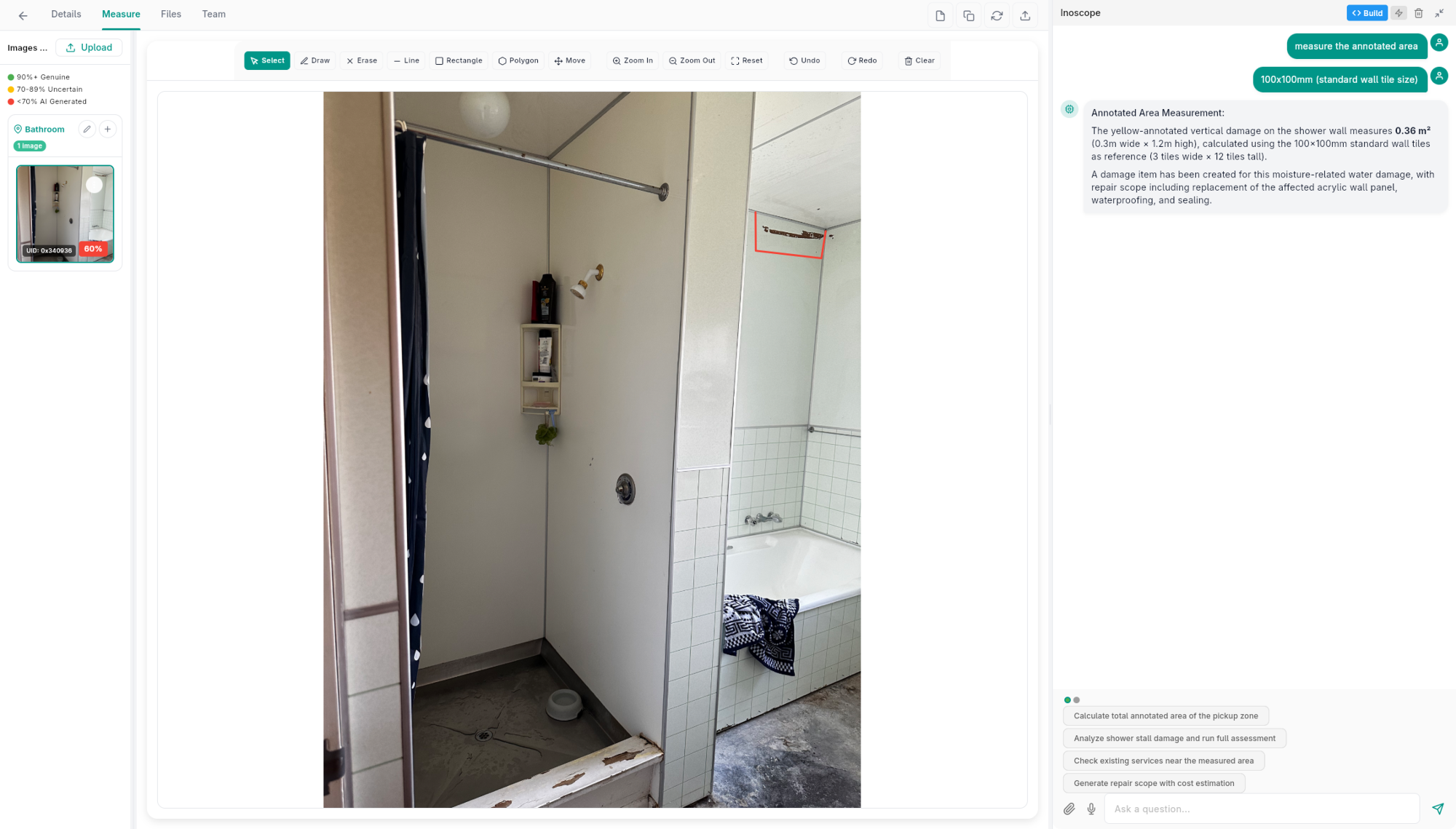
Layout
The panel uses a three-column layout:
- Left — Image thumbnails organized by location group
- Center — Image canvas with annotation toolbar and the active image
- Right — AI chat panel for requesting measurements and viewing results
Drawing Tools
Use the toolbar at the top of the canvas to annotate the image before asking for a measurement:
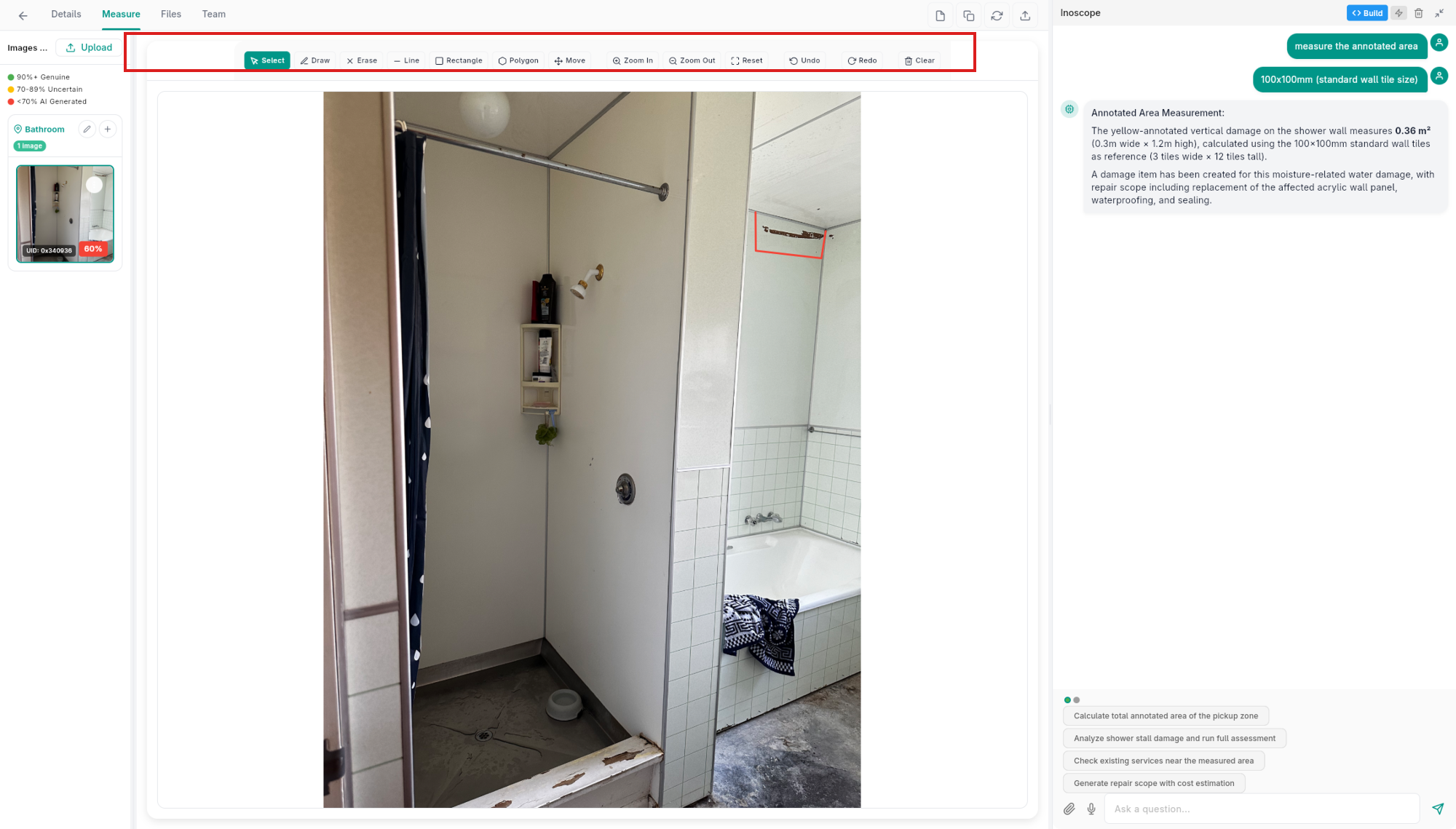
| Tool | Description |
|---|---|
| Select | Select and reposition existing annotations |
| Draw | Freehand annotation |
| Erase | Remove annotations |
| Line | Straight line |
| Rectangle | Box or area outline |
| Polygon | Multi-point closed shape |
| Move | Pan the canvas |
| Zoom In / Zoom Out | Zoom the image |
| Reset | Reset zoom and position |
| Undo / Redo | Step through annotation history |
| Clear | Remove all annotations |
Running a Measurement
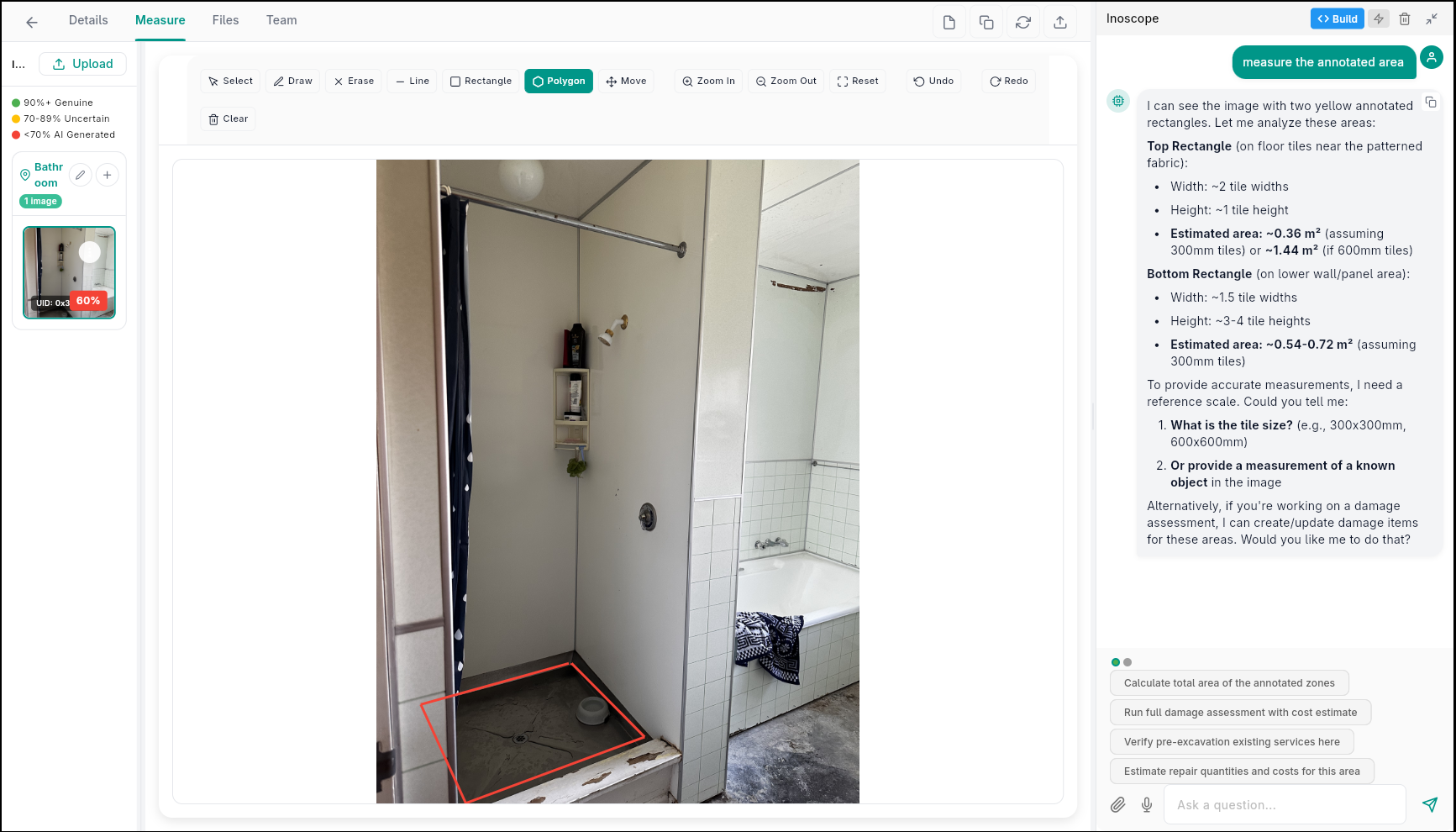
- Annotate the area you want to measure using the drawing tools.
- In the AI chat panel on the right, describe what you want measured — for example:
- "Measure the annotated area"
- "Use the 100×100mm wall tiles as scale reference and calculate the damaged area"
- The AI reads your annotations and any scale reference visible in the image, then returns the calculated measurements.
Measurement Results
The AI responds in the chat panel with:
| Field | Description |
|---|---|
| Description | What was measured and how |
| Dimensions | Width, height, area, and/or volume in real-world units |
| Scale reference | The object used to determine real-world scale |
| Explanation | Step-by-step reasoning behind the result |
After receiving a measurement, you can continue the conversation to refine the result, ask for a repair scope, or create a damage item from the findings.