
Dashboard
The Dashboard is your home screen — it shows all your assessments at a glance, your activity in numbers, and gives you quick access to create new work.
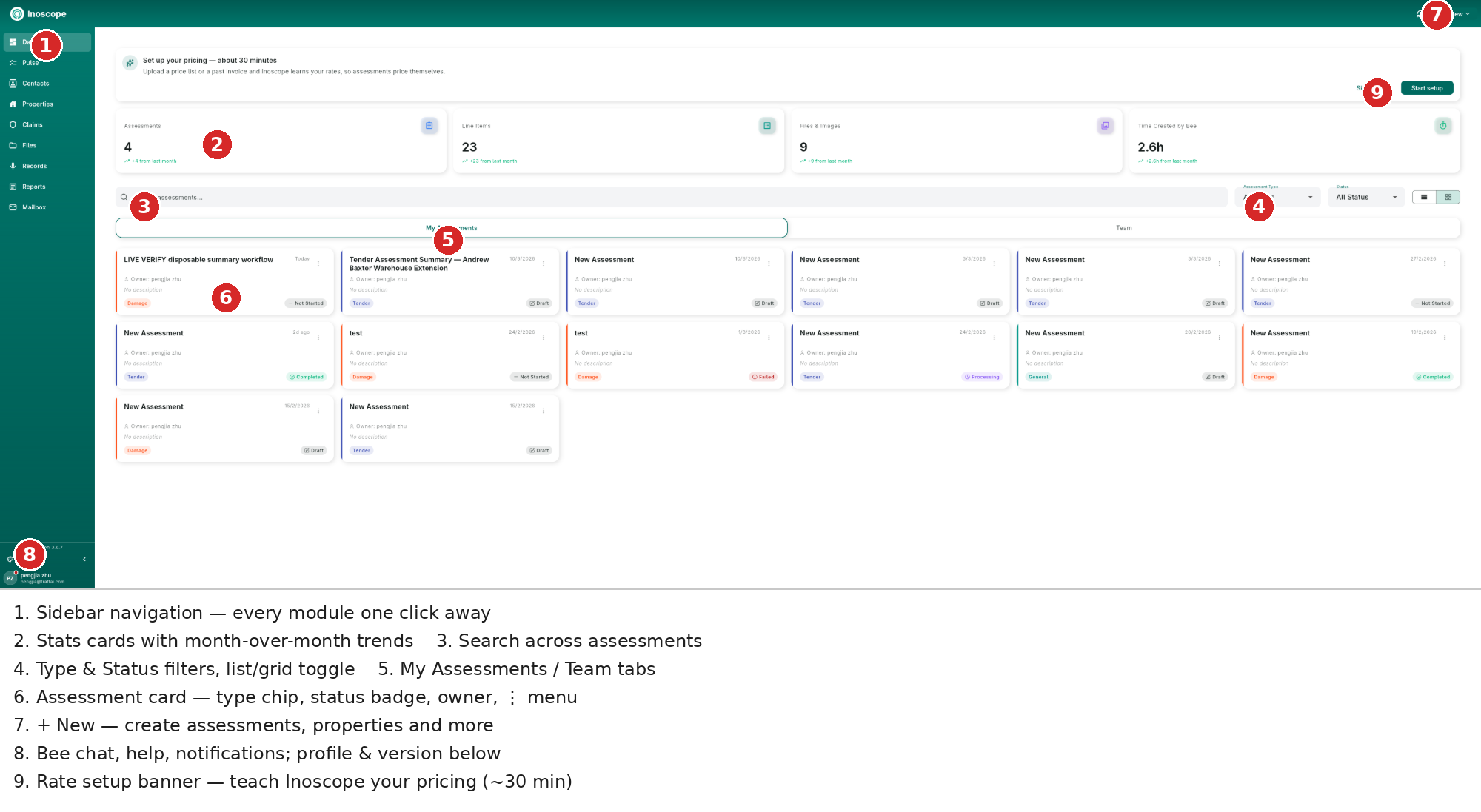
- Sidebar navigation — every module one click away.
- Stats cards — Assessments, Line Items, Files & Images and Time Created by Bee, each with the trend vs last month.
- Search across assessments by name, property or ID.
- Filters — Assessment Type and Status, plus a list/grid view toggle.
- My Assessments / Team tabs — your own work vs work shared with you.
- Assessment cards — type chip, status badge, owner, date and a ⋮ menu (rename, share, delete…).
- + New — the global create menu.
- Quick utilities — appearance, wiki, notifications; profile & version below.
- Rate setup banner — teach Inoscope your pricing (~30 min) so assessments price themselves.
Stats Cards
| Card | What It Shows |
|---|---|
| Assessments | Total assessments, with change from last month |
| Line Items | Total cost line items across all assessments |
| Files & Images | Total uploaded files and images |
| Time Created by Bee | How much time Bee's work has saved you |
Searching & Filtering
The Search assessments... bar filters in real time. Combine it with the Assessment Type filter (Damage, General, Tender, Rapid) and the Status filter (Draft, In Progress, Completed, Not Started, Processing, Failed). The toggle on the right switches between a list and a card grid.
My Assessments vs Team
| Tab | What It Shows |
|---|---|
| My Assessments | Assessments you own |
| Team | Assessments shared with you by company members |
Shared assessments open exactly like your own; your access level is set by the owner on the assessment's Team tab.
The + New Menu
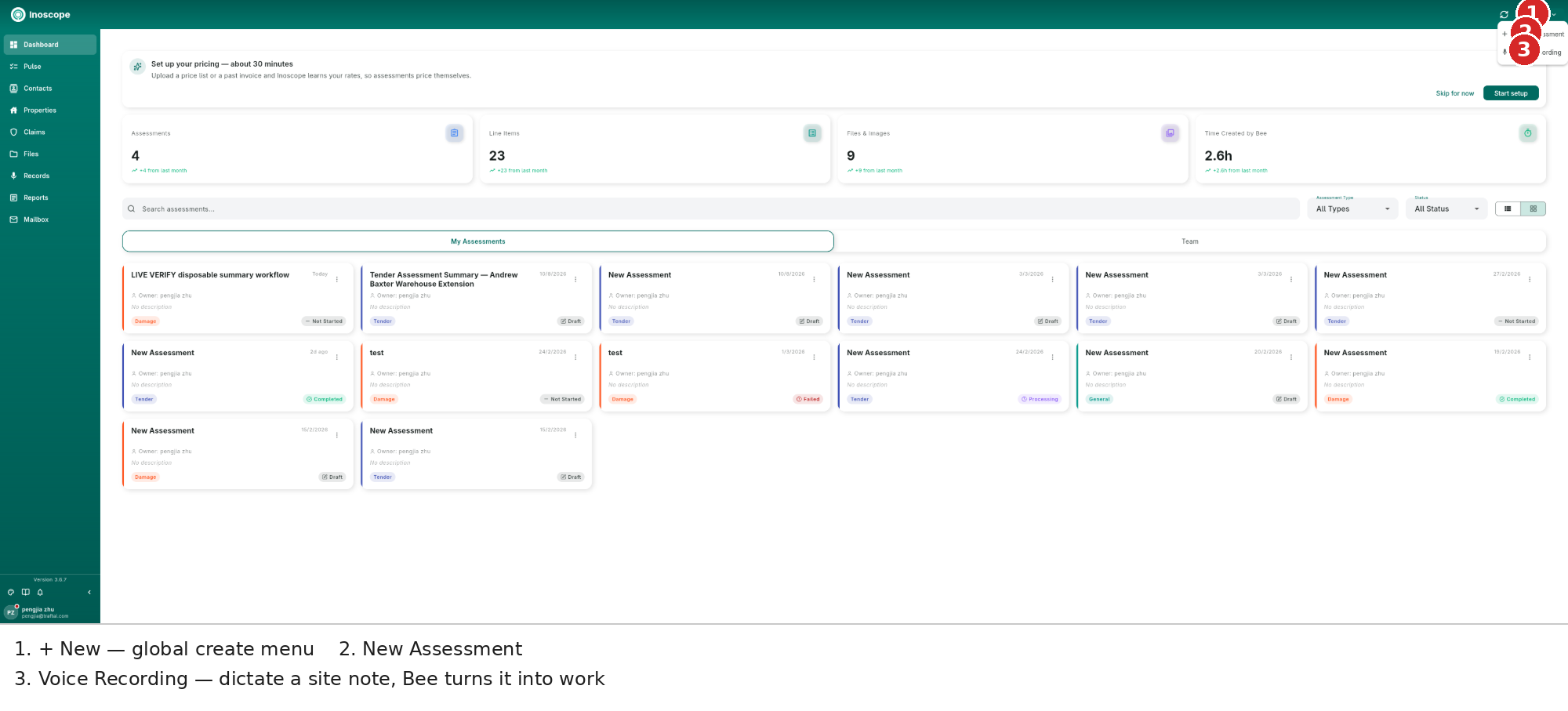
- + New — always available in the top-right header.
- New Assessment — opens the create dialog.
- Voice Recording — capture a site note right now; it lands in Records, is transcribed, and Bee can turn it into scope.
Assessment Cards
Each card shows:
- Type chip — Damage, General or Tender (colour-coded left border).
- Status badge — Not Started, Draft, Processing, In Progress, Completed, Failed.
- Owner and date, plus a short description when set.
- ⋮ menu — card actions such as rename, share and delete.
Click a card to open the assessment.
Rate Setup Banner
First-time companies see "Set up your pricing — about 30 minutes". Upload a price list or a past invoice and Inoscope learns your rates, so assessments price themselves. You can Skip for now and return later via Settings → Calibration.
Bottom-Left Utilities
| Button | Action |
|---|---|
| Appearance | Theme (Light/Dark/System), accent colour, gradient sidebars, or Customize… for the full UI settings |
| Wiki | Opens this guide |
| Notifications | The notification centre; the gear opens per-event channel preferences |
| Collapse | Shrinks the sidebar to an icon rail |
Next
- Assessments — create and run assessments.
- Inoscope Operator — put Bee to work.