15. Subscription & Billing
Inoscope offers tiered subscription plans with different feature levels. This chapter covers plans, payments, credits, and billing management.
Subscription Overview
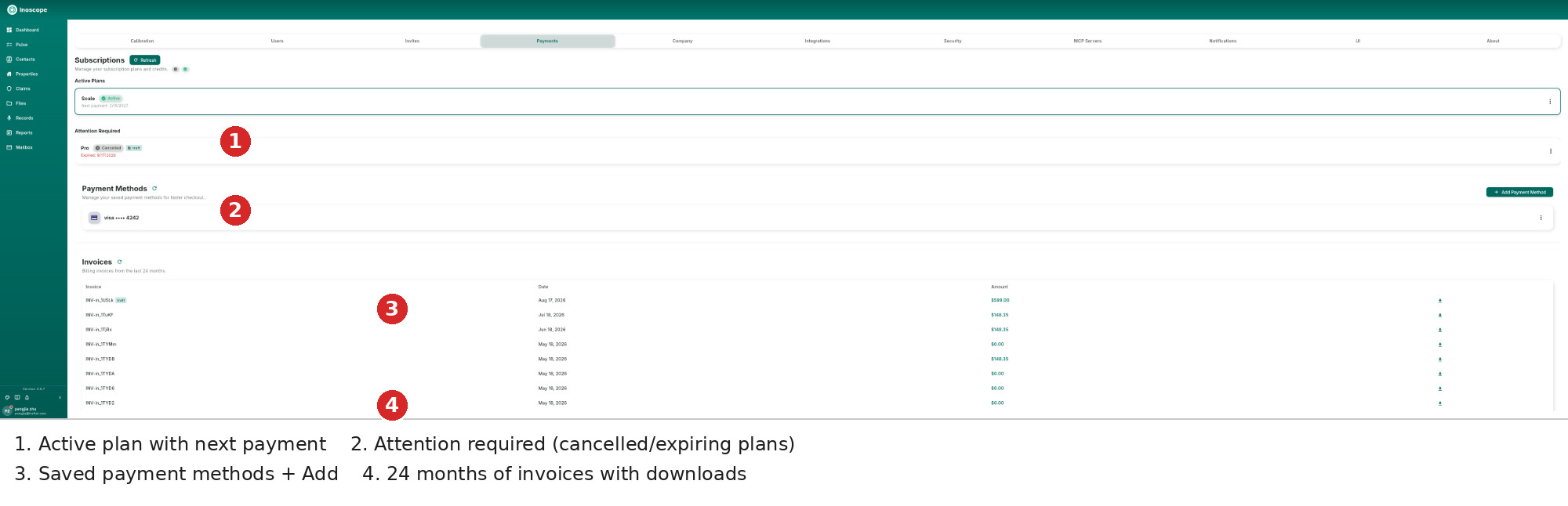
Access your subscription from Settings → Payments tab.

Your subscription dashboard shows:
- Current plan name and tier (e.g. Scale — Active)
- Status — Active, Trialing, Past Due, Canceled, or Pending
- Payment Methods — linked cards or bank accounts
- Invoices — billing history for the last 24 months
Subscription Statuses
| Status | Meaning |
|---|---|
| Active | Your subscription is current and all features are available |
| Trialing | You're in a free trial period |
| Pending | Subscription is being set up or awaiting activation |
| Past Due | A payment has failed — update your payment method to restore access |
| Canceled | Subscription has been canceled (access continues until period end) |
| Inactive | No active subscription |
Subscribing to a Plan
- Go to the subscription section in Settings.
- Browse available plans and their features.
- Select the plan that fits your needs.
- Choose your billing interval: Monthly or Annual (annual typically includes a discount).
- Enter your payment details (credit card).
- Apply a coupon code if you have one.
- Review the price preview (including any discounts or taxes).
- Click Subscribe to activate.
Free Trial
New accounts may start with a free trial period. During the trial:
- You have access to plan features
- No charges until the trial ends
- You can cancel before the trial ends to avoid charges
Upgrading or Downgrading, and Changing Billing Interval
Click the ⋯ menu on your active plan to access management options.


Upgrading
- Go to your subscription settings.
- Click Upgrade.
- Select the new plan.
- The price difference is prorated for your current billing period.
- New features are available immediately.
Downgrading
- Go to your subscription settings.
- Click Downgrade.
- Select a lower-tier plan.
- The downgrade takes effect at the end of your current billing period.
- You retain your current plan features until then.
Changing Billing Interval
Switch between monthly and annual billing:
- Go to subscription settings.
- Click Switch to Yearly Billing.
- Review the price change.
- Confirm the switch.
Annual billing typically saves money compared to monthly payments.
Payment Methods
Adding a Payment Method

- Go to Settings → Payments → Payment Methods.
- Click + Add Payment Method.
- Enter your card details.
- The payment method is saved securely.
Setting a Default
Click the ⋯ menu on a saved payment method to manage it.


- View your payment methods list.
- Click Set Default on the method you want to use.
- This method will be charged for subscription renewals.
Removing a Payment Method
- Find the payment method in the list.
- Click Remove and confirm.
You cannot remove the default payment method while an active subscription is using it — set another method as default first.
Invoices
View your billing history:
- Go to Settings → Payment Settings → Invoices.
- See a list of all past invoices with:
- Invoice date
- Amount charged
- Payment status
- Click Download to save a PDF copy of any invoice.
- Click the invoice link to view it in your browser.
Retrying Failed Payments
If a payment fails:
- You'll receive a notification that your subscription is Past Due.
- Go to Settings → Payment Settings.
- Update your payment method if needed.
- Click Retry Payment to attempt the charge again.
- Once successful, your subscription returns to Active status.
Canceling Your Subscription
- Go to subscription settings.
- Click Cancel Subscription.
- Confirm the cancellation.
- Your access continues until the end of the current billing period.
- After cancellation, you can Resume at any time to reactivate.
Resuming a Canceled Subscription
If you've canceled but haven't reached the end of your billing period:
- Go to subscription settings.
- Click Resume Subscription.
- Your subscription is reactivated and will renew as normal.